Add New Program
⚠️ The "Programs", "Enrollment v2" and "Agreements" Workspace Modules need to be enabled beforehand.
Programs represent the activities a School offers, such as sports, arts, or other extracurricular classes. Each Program belongs to a specific School and is scheduled within a Session, which defines the timeframe during which the activity takes place.
⚠️ Before adding New Program it is required to preliminary add the program template, program type, program category, program session and sections.
To Add a New Program
-
Select a School.
Open 'Programs' → 'Schools' left sidebar navigation item using the "Organizational Account".
Here you can see a school list: a compilation of schools that have been added under the Organizational Account.
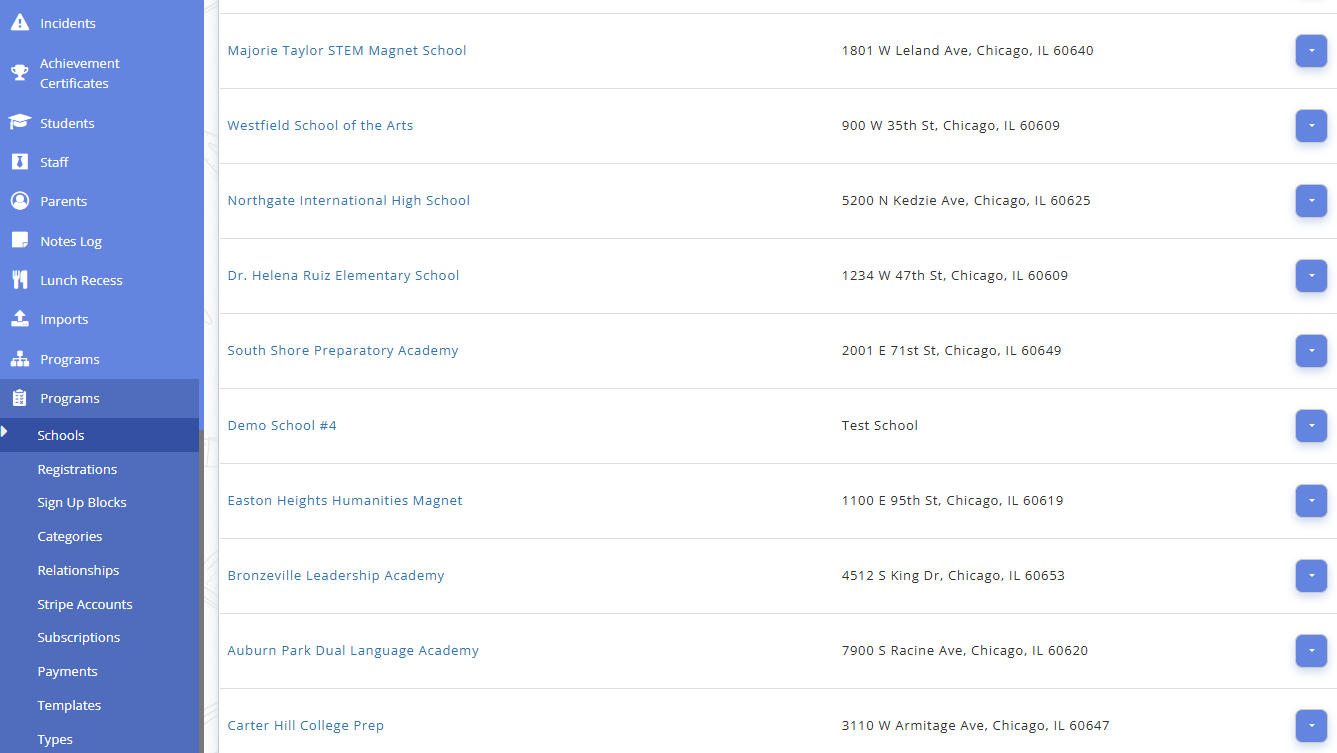
Fig. 1. Schools ListRelated User Guide:
How To Add A School -
Select the Session.
Click the 'Sessions' button in the context menu of a particular School. Alternatively, click on the School name link.

Fig. 2. School Session -
Select "Programs"
To open the Programs page , click the 'Programs' button in the context menu of a particular Session. Alternatively, click on the "Session" name link.
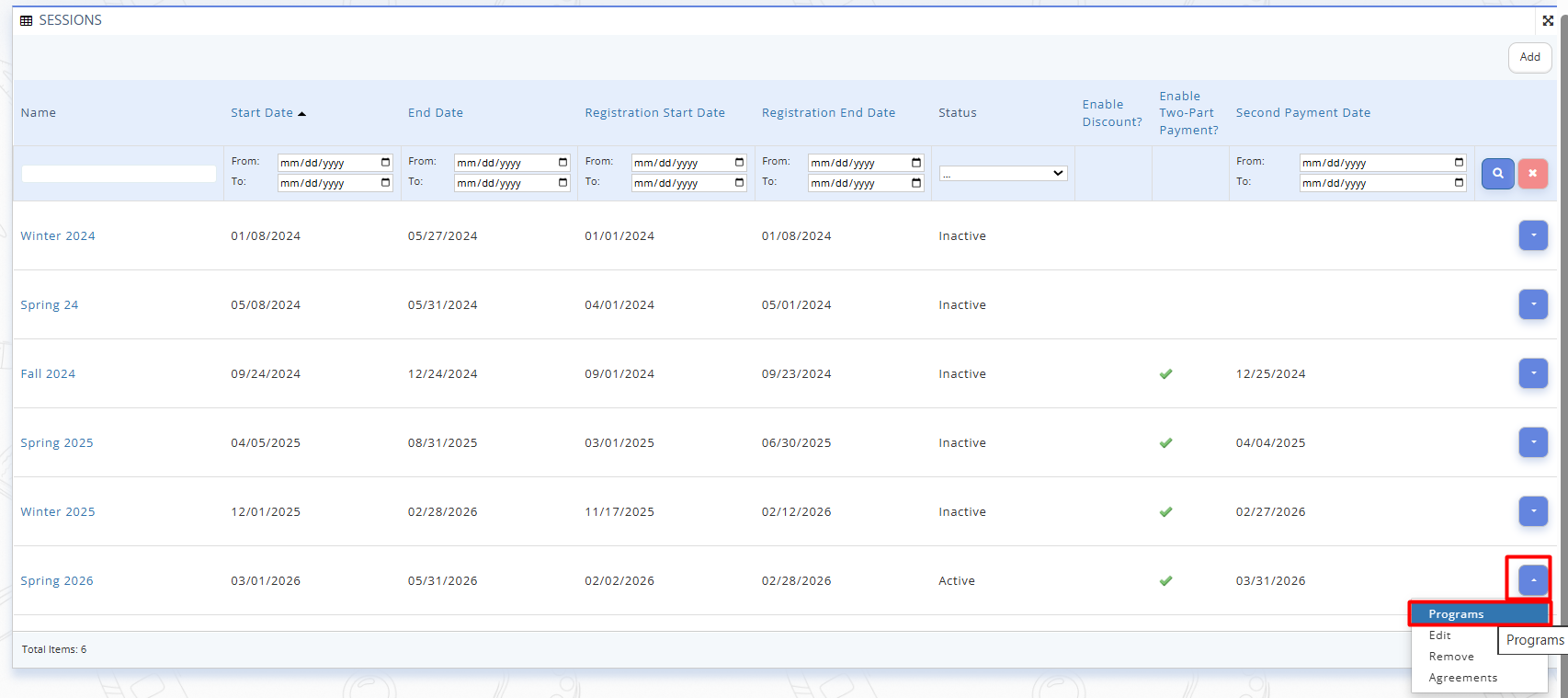
Fig. 3. Heading to the Programs pagePrograms page includes:
- Programs list: The compilation of Programs that have been added under the Session.
- 'Assign' button: Allows you to add a New Program.
- “Columns” button helps to set up which programs’ information to display on the aggregated programs page for quick reference.
- “Manage Program” actions: each Program in the list can be marked completed, edited or removed.
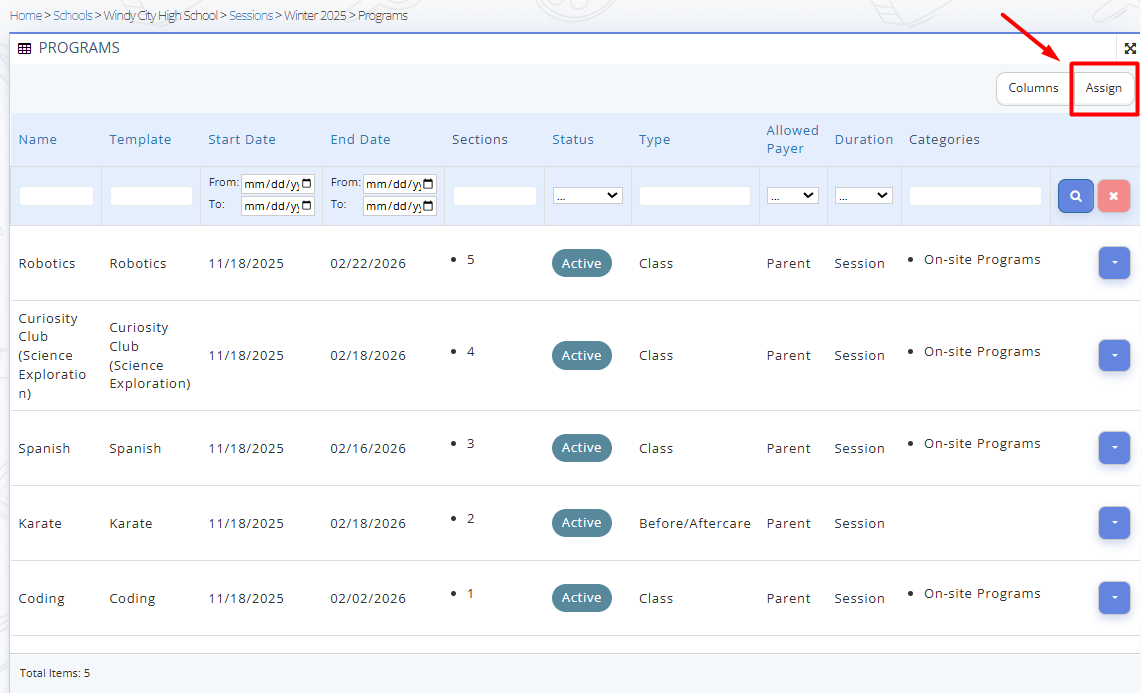
Fig. 4. 'Programs' PageAdditionally, by clicking context menu button on the right to the Program, you can access:
- the program pricing list
- program subscriptions list
- manage program classes
- track program Events and Logs
- Program agreements
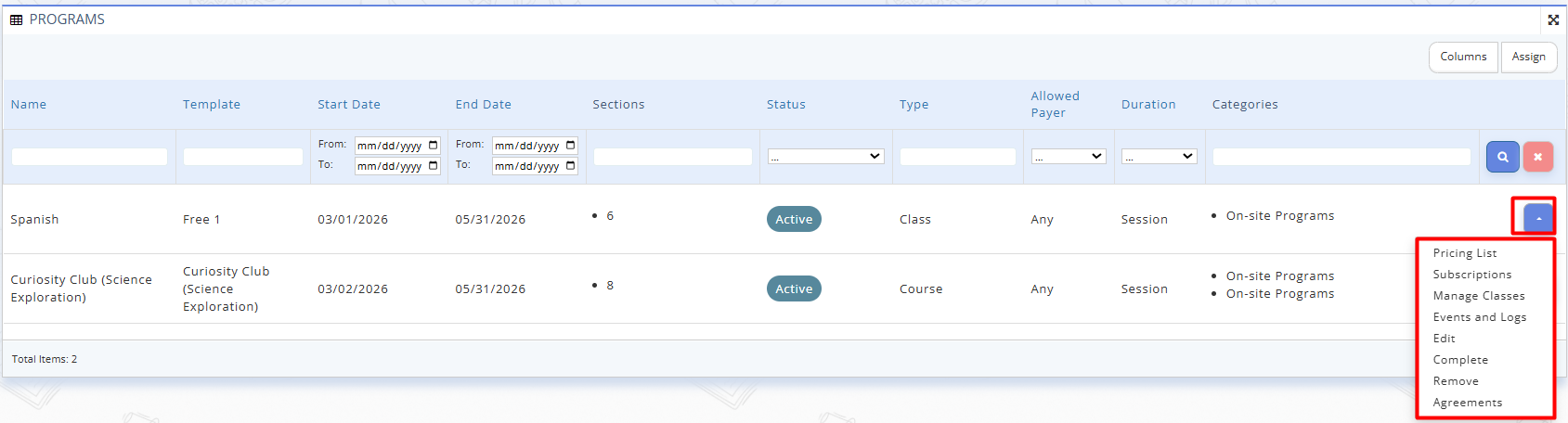
Fig. 5. Programs OptionsRelated User Guidelines:
Configure Billing for Programs -
To add a New Program, click 'Assign' button, and then fill in all required fields in the opened 'Assign' window:
- Name
The name of the program or activity.
- Template
A predefined template used to quickly create a program with default settings (if the template is selected, all the fields will be pre-filled according to the template, but the information can be edited.)
- Start Date
The date when the program begins.
- End Date
The date when the program ends.
- Sections
The sections or groups included in this program.
- Type
Helps clasify the program by type: Before/After Care, Class, Course, etc.
- Allowed Payer (student, parent, any, etc.)
Specifies who is allowed to pay for the program.
- Duration (session, 1-year, ongoing, etc.)
Indicates how long the program runs.
- Categories (Art, Boxing, English, etc.)
Helps classify the program by subject or activity type.
- Description
Information to be displayed in the Success window once registration to the program is complete by parents.
- No Class Dates
Dates when classes will not take place.
- Enrollment Capacity
The maximum number of participants allowed to enroll. -
Click “Assign”.
Related User Guidelines:
Program Templates