QR Attendance Tracking
Using Student QR Codes for Attendance Tracking on the Platform
Steps
-
Open the platform and log in with a role that has access to the student list (Administrator, Teacher).
-
Open the “Students” section to view the list of students.
-
Use the filters to select the required section, and make sure both are selected correctly.
-
Click the “Export QR” button to generate QR codes for all students in the selected section.
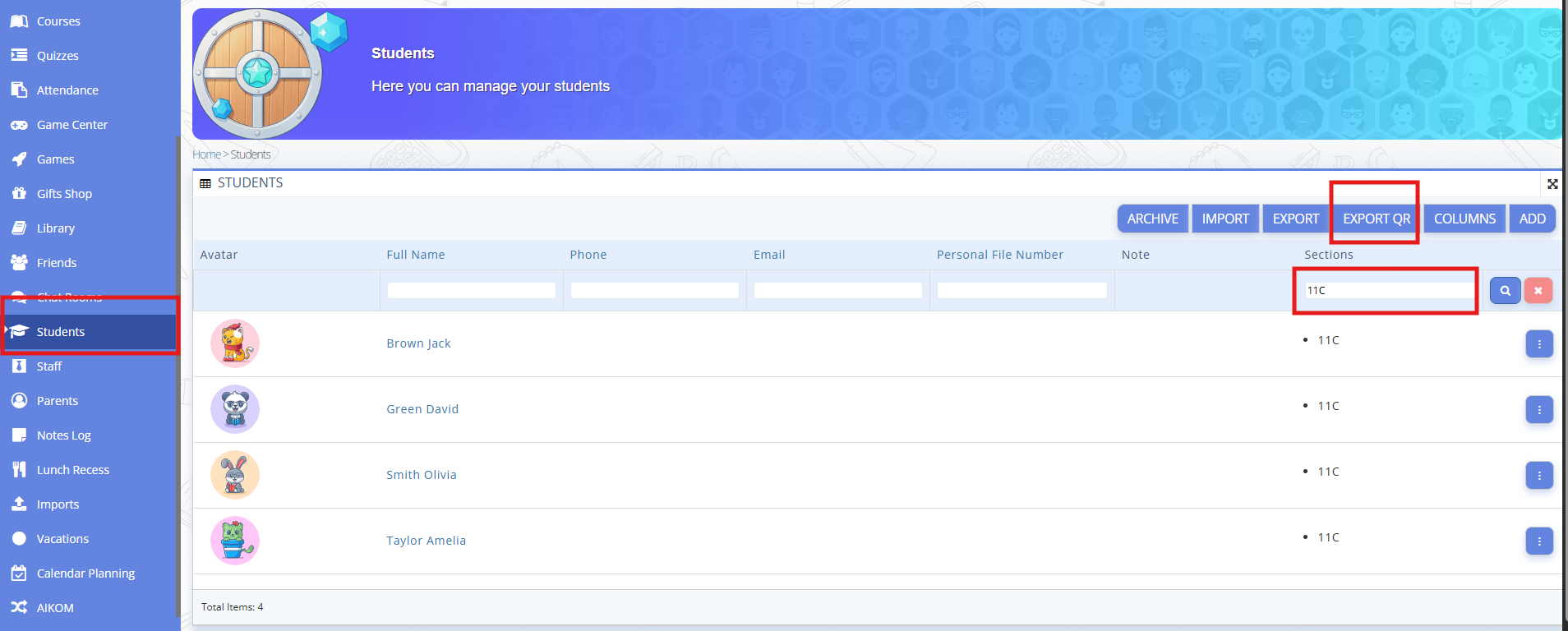
Fig. 1 — Using the “Export QR” button -
Confirm the export (if prompted), download the file, and save the PDF on your computer.
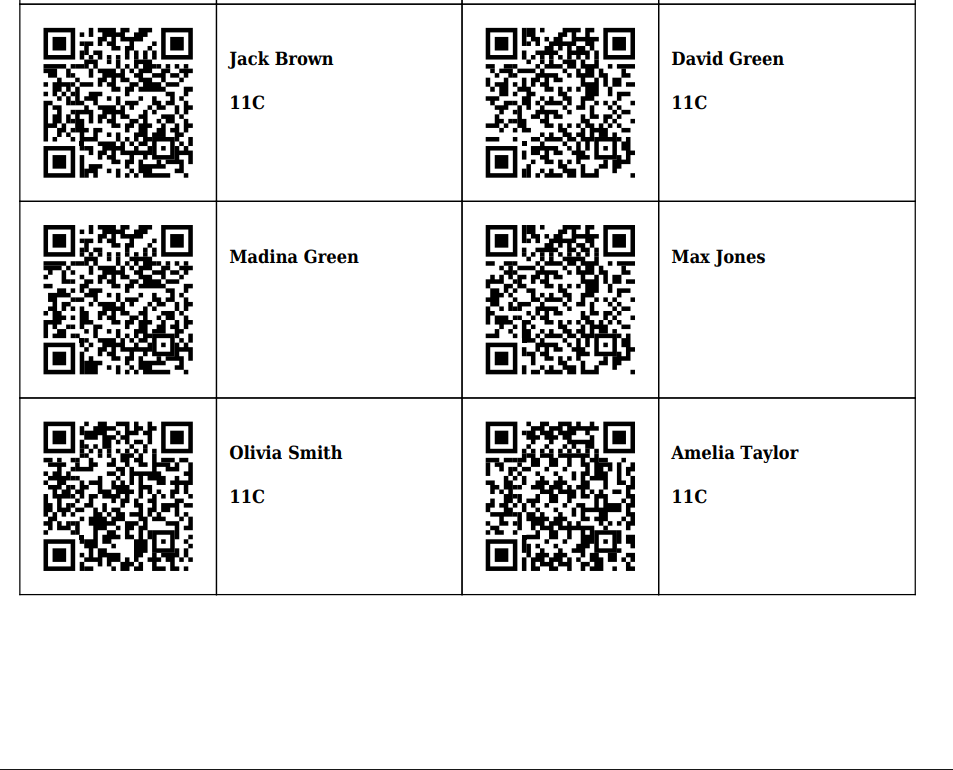
Fig. 2 — Downloading the PDF file with QR codes -
Open the PDF file and check that each student has their own QR code, the label (full name, section) is correct, and the layout is suitable for printing (the text is readable and the QR code is clearly visible). Print the file and use the QR codes to track attendance by scanning them.
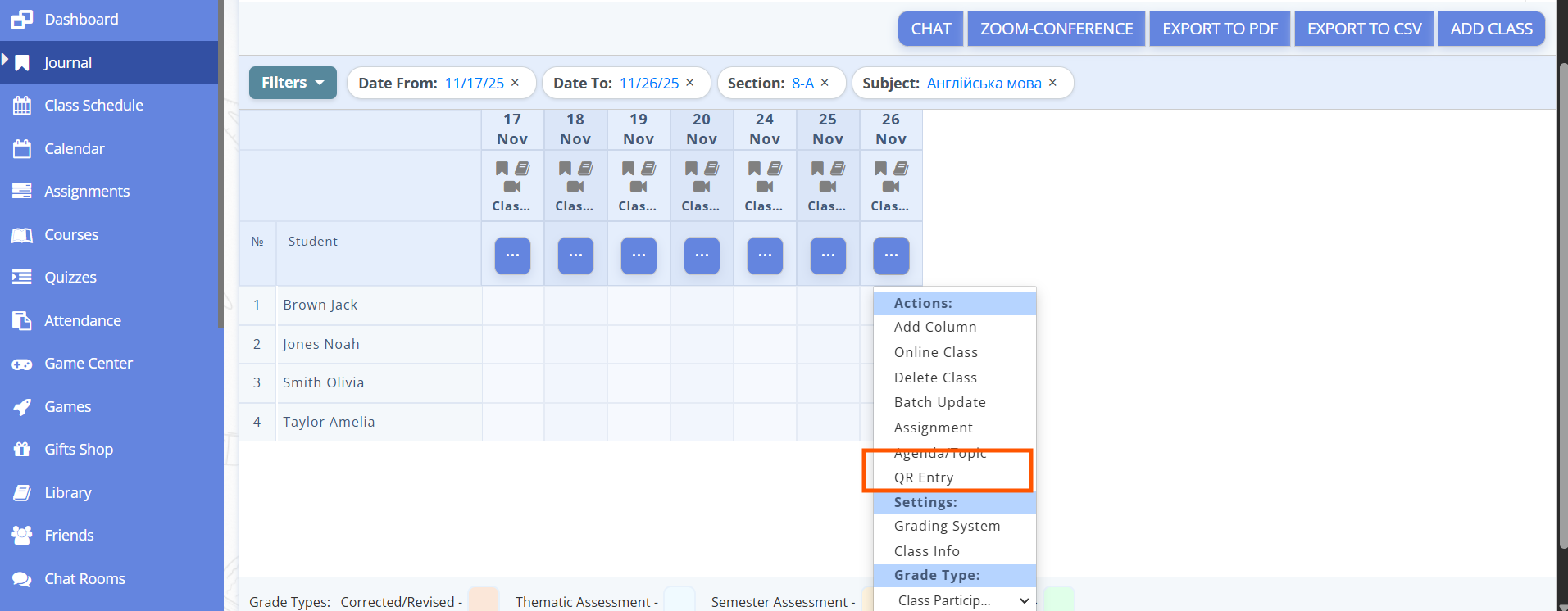
Fig. 3 — Example of a PDF document with student QR codes -
Log in to the platform as a School Administrator and open the “Settings” section from the left menu to configure the default attendance type.
-
Go to the “General Settings” section, find the “Default Attendance Type” parameter, and click the “Edit” button next to it.
-
In the list of values, select “Present” and save the changes so that the system correctly marks students as “Present” when scanning QR codes.
-
Log in to the platform as a Teacher or Administrator and open the Journal.
-
Select the required period, subject, and section, and open the class for which you want to track attendance.
-
Enable QR scanning mode using
 → “QR Entry” on the attendance page for the selected class.
Fig. 4 — Enabling QR scanning mode using “QR Entry” -
When QR Entry mode is enabled, a camera window (QR code scanner) will open on the screen.
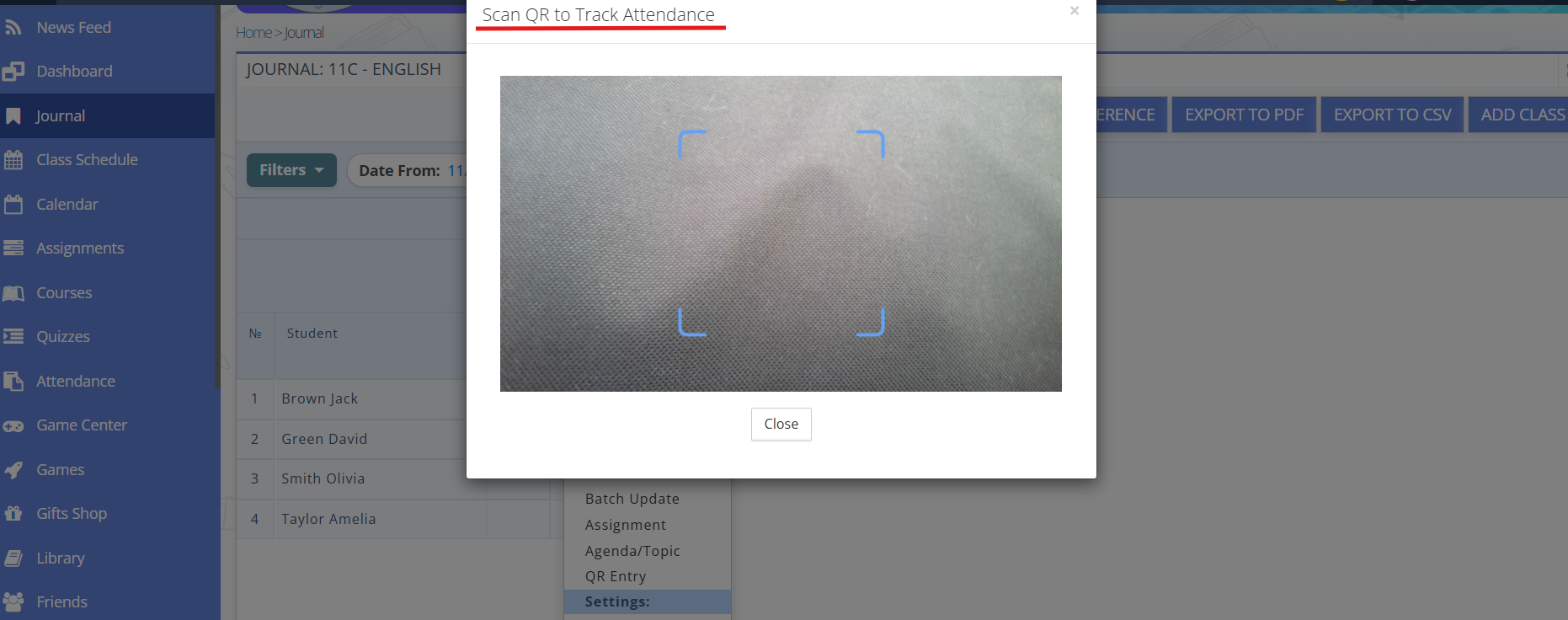
Fig. 5 — QR code scanner window on the screen

Fig. 6 — QR code scanner window on the screen -
Scan each student’s QR code: one by one, go to each student or ask students to come to you, point the device camera at the student’s QR code, and wait until the system reads it.
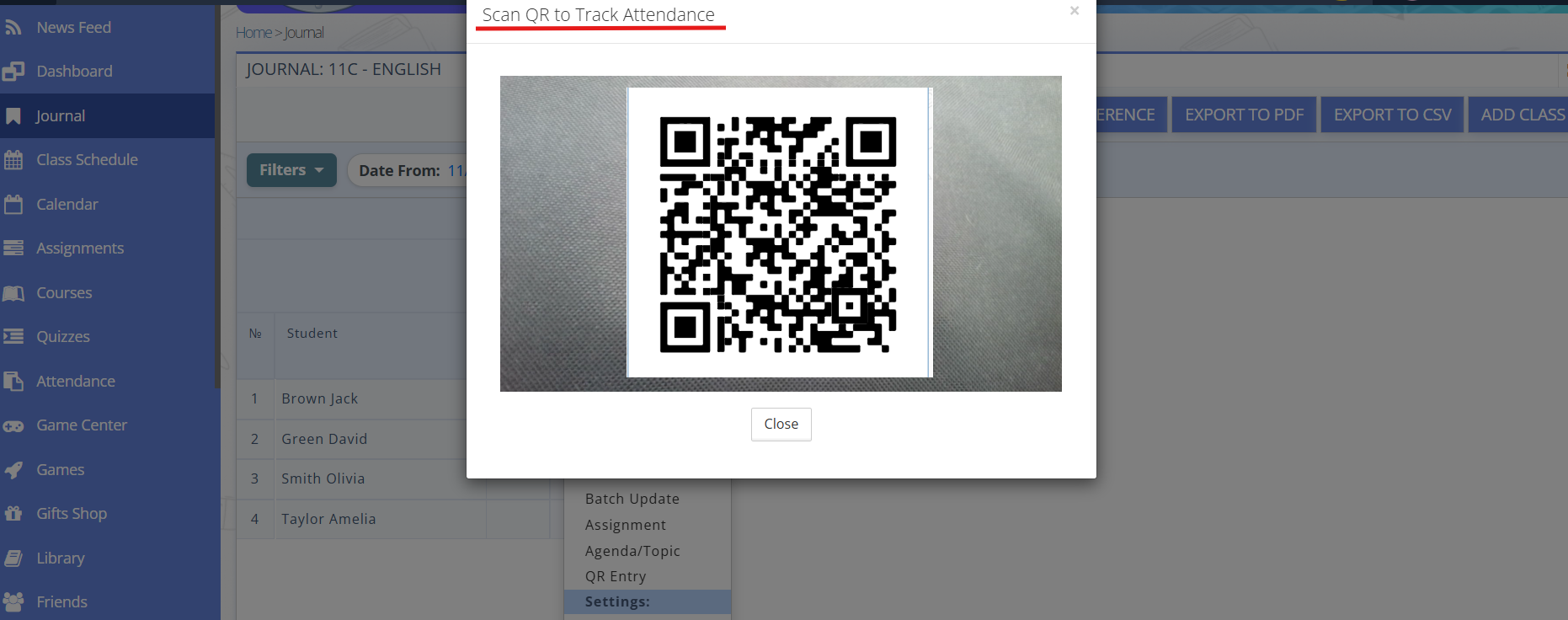
Fig. 7 — Scanning a student’s QR code during the class -
After each successful scan, make sure the student is automatically marked as “Present” in the journal for this class. Repeat the scanning process for every student who attended the class.
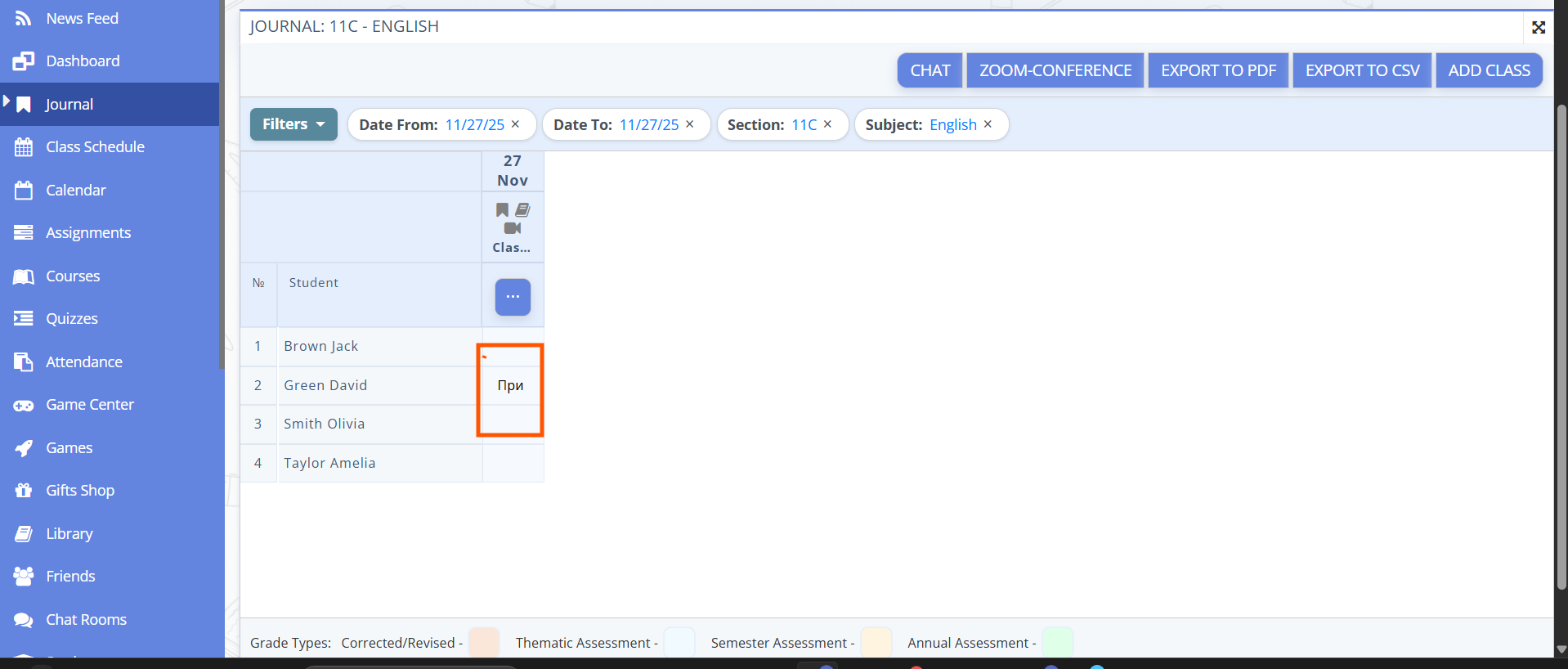
Fig. 8 — Automatic “Present” mark in the journal after scanning