To add a New Session
⚠️ The "Programs", "Enrollment v2", "Agreements", "Platform Agreements", "Program Agreements", "Session Agreements" and "Signatures" modules need to be enabled beforehand.
⚠️ Before adding new session, it is required to preliminary set up an academic year and, at least, one study term. The session will have the same title as a study term.
-
Select a School.
Open 'Programs' → 'Schools' left sidebar navigation item using the "Organizational Account".
Here you can see a school list: a compilation of schools that have been added under the Organizational Account.
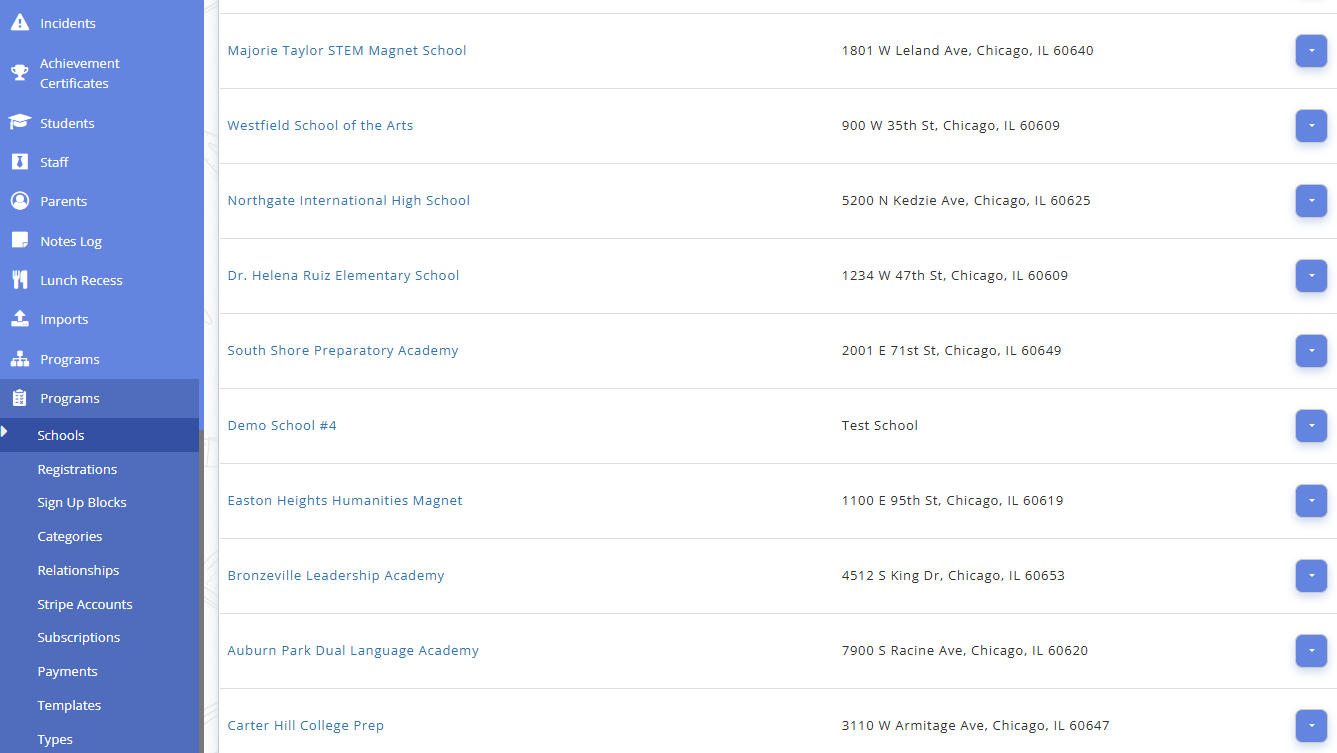
Fig. 1. Schools List -
Select the Session.
Click the 'Sessions' button in the context menu of a particular School. Alternatively, click on the School name link.

Fig. 2. School SessionSessions page includes:
Sessions List: The compilation of Sessions that have been added under the School.
'Add' Button: Allows users to add a New Session.
Manage Session Actions: Each Session in the list can be edited or removed.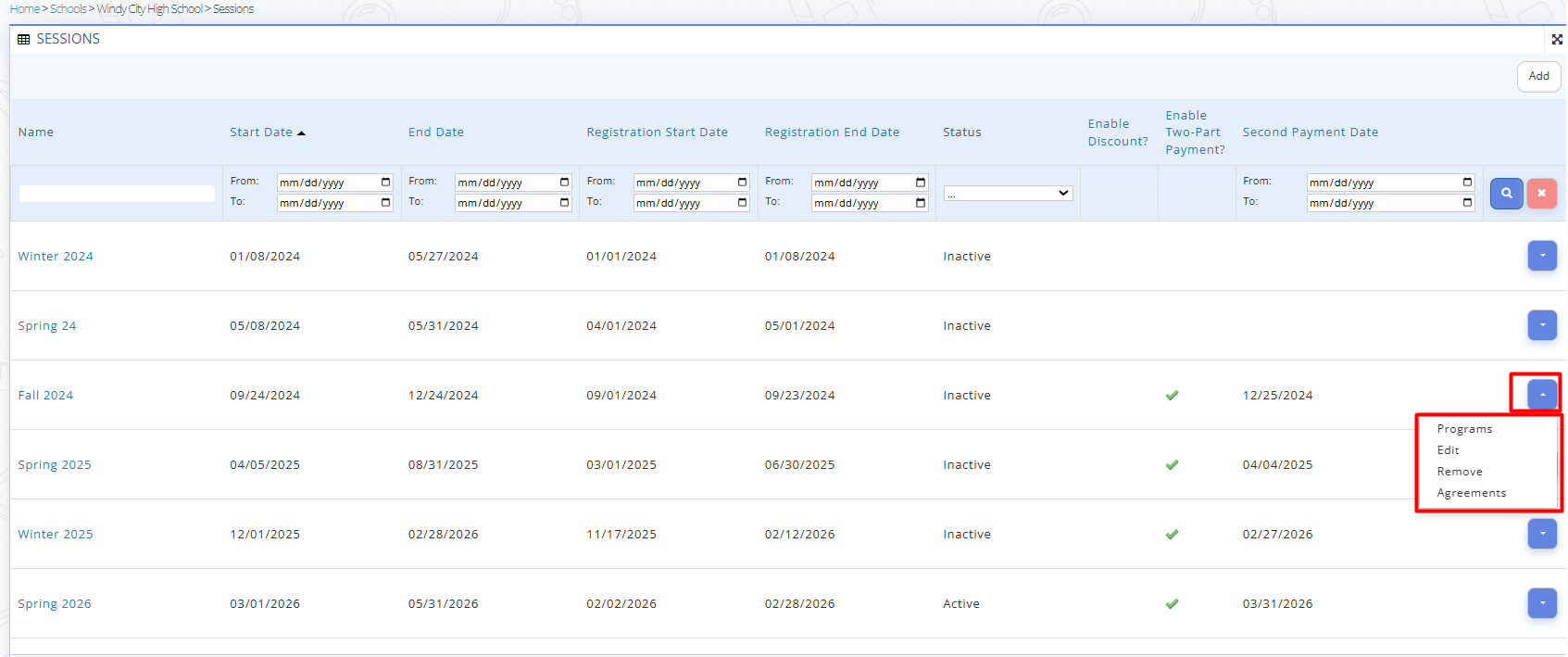
Fig. 3. Sessions Page OverviewAdditionally, you can access:
- School Programs page by clicking the 'Programs' option in the actions menu.
Related User Guideline:
Add New Program- Session Agreements page by clicking 'Agreements' in the actions menu.
Related User Guideline:
Agreements and e-Signatures -
To add a New Session, click the 'Add' button in the right upper corner of the page, and then fill in all the required fields in the opened 'Add' window:
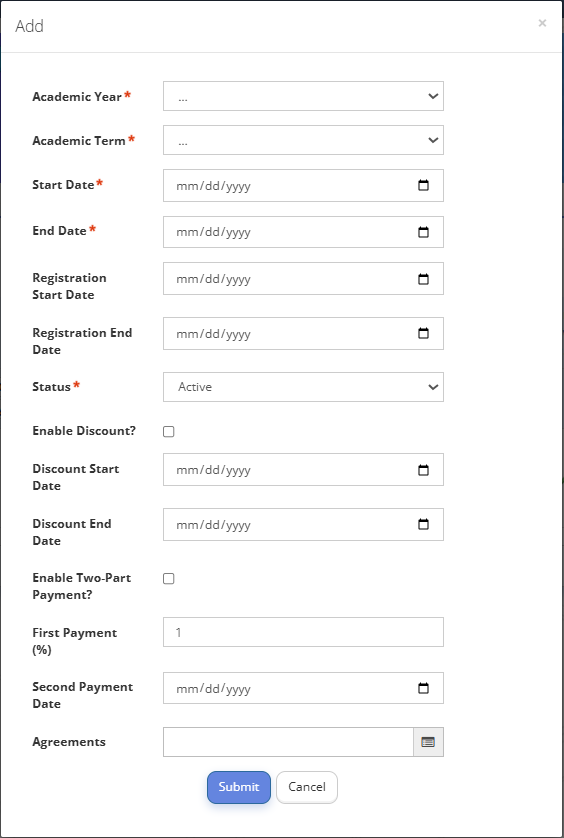
Fig. 4. New Session- Academic Year
Defines the school year to which the program or session belongs (for example, 2025–2026)
- Academic Term
Specifies the term within the academic year (for example, Fall, Spring, Semester 1).
- Start Date
The date when the session or program officially begins (automatically pre-filled within the selected Academic Term).
- End Date
The date when the session or program officially ends (automatically pre-filled within the selected Academic Term). The session will automatically become inactive once the end date passes. - Registration Start Date
The date from which students are allowed to register for the program.
- Registration End Date
The last date on which registration for the program is allowed.
- Status:
-- Active
-- Inactive
New Sessions are created with an Active Status.
- Enable Discount?
Indicates whether discounted pricing is available for this program.
- Discount Start Date
The date from which the discount becomes applicable.
- Discount End Date
The date after which the discount is no longer applied.
- Enable Two-Part Payment?
Specifies whether the total fee can be split into two separate payments.
- First Payment (%)
Defines the percentage of the total fee to be paid as the first installment.
- Second Payment Date
The due date for the remaining payment balance.Fields marked with asterisks are obligatory to fill in.
-
Click "Submit".