Post-Login Redirects
⚠️ This setting is available only for the School Administrator (or assigned user types) in ACL Manager.
⚠️ The "Url Route Manager" workspace module must be enabled.
⚠️ The "Url Route Manager User Type" and "Url Route Manager User Types by Work Space" permissions must be granted to the relevant user types who configure the starting page display.
Overview
This instruction describes how to configure user redirection after login. It allows defining which page different user types will see after authentication, depending on their roles on the platform.
Steps
-
Enable the "Url Route Manager" workspace module.
To do this:
1.1 Navigate to the "Settings" -> "Workspace Modules" menu section.
1.2 Find the "Url Route Manager" module and click "Enable" on the right.

Fig. 1 — Url Route Manager module activation -
Grant the "Url Route Manager User Type" and "Url Route Manager User Types by Work Space" permissions to the relevant user types.
To do this:
2.1 Go to the "Settings" -> "ACL Manage" menu section.
2.2 Find the "Url Route Manager" section. Check the boxes for both permissions for the relevant user types who will configure starting pages for different roles on the platform on behalf of the school administration.

Fig. 2 — Granting Url Route Manager permissions"
2.3 Click "Submit" in the top right corner. -
After enabling "Url Route Manager" workspace module and granting both permissions, the "Post-Login Redirects" section will appear in the "Settings" menu.
- Go to the "Post-Login Redirects" menu section.
- Click the "Add" button.

Fig. 3 — "Post-Login Redirects" Page - Select the required options from the dropdown fields in the form:
- User Type;
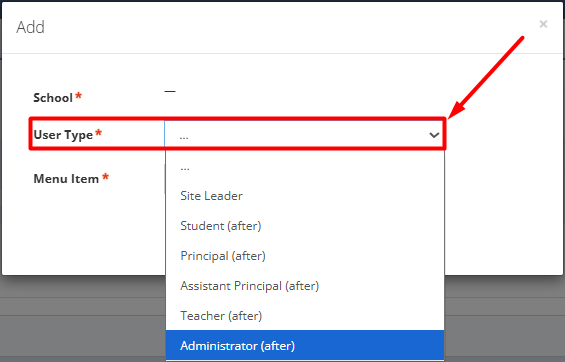
Fig. 4 — User Type selection
- Menu Item;
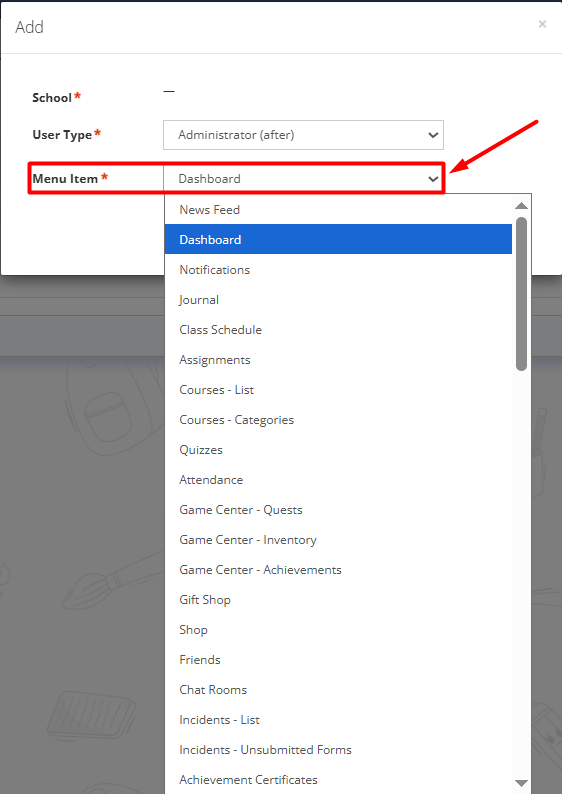
Fig. 5 — Menu Item selection - Click Submit.
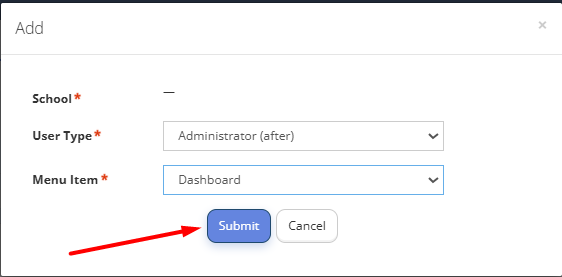
Fig. 6 — Saving settings
Recommended settings:
- For Administrators/Directors, set the "Dashboard" menu item;
- For Teachers, set the "Journal" menu item;
- For Students, set the "Assignments" or "Gradebook" menu item.
If Post-Login Redirects is not configured for different roles on the platform, the users will be redirected by default to the "News Feed" section.
Editing/Removing the Post-Login Redirects records
- In order to edit or remove the Post-Login Redirects for the specific roles, click the context menu button on the right to the required User Type and select corresponding option.
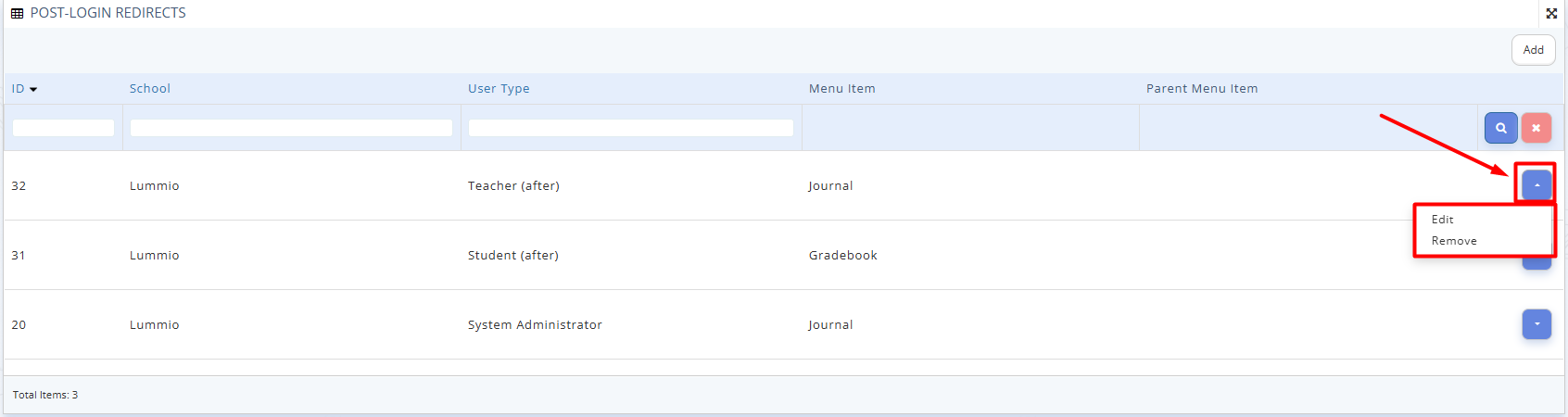
Fig. 7 — Editing/Removing the post-login redirects - Confirm your action by clicking "Yes".

Fig. 8 — Confirming action