Sign In
Signing In to the Platform
⚠️ Do not share your verification code with anyone.
Steps
Option 1: Sign-In via One-Time Verification Code
-
Open the Platform in your browser and go to the “Sign In” page.
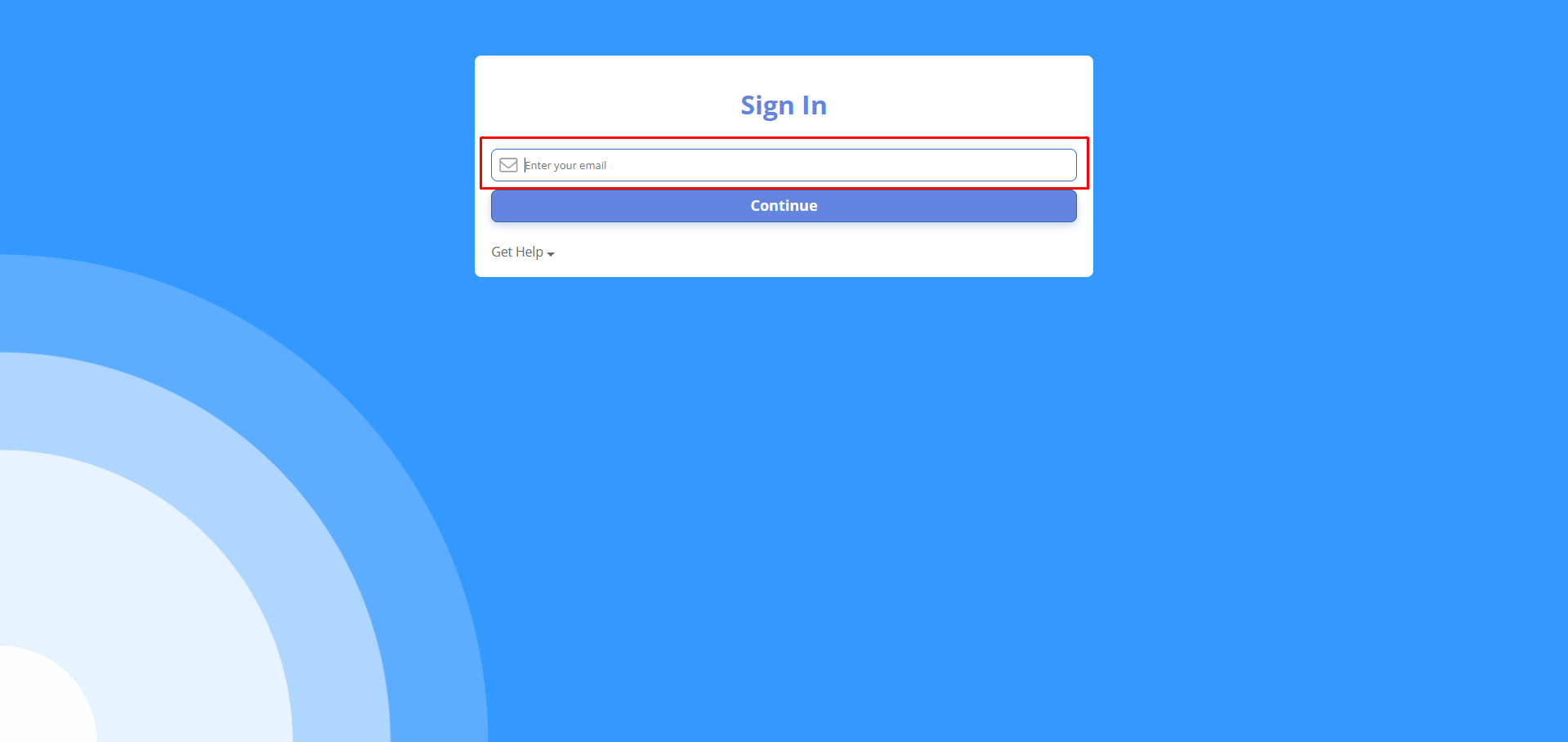
Fig. 1 — “Sign In” page with email field -
Enter your email address in the “Enter your email” field and click “Continue”.
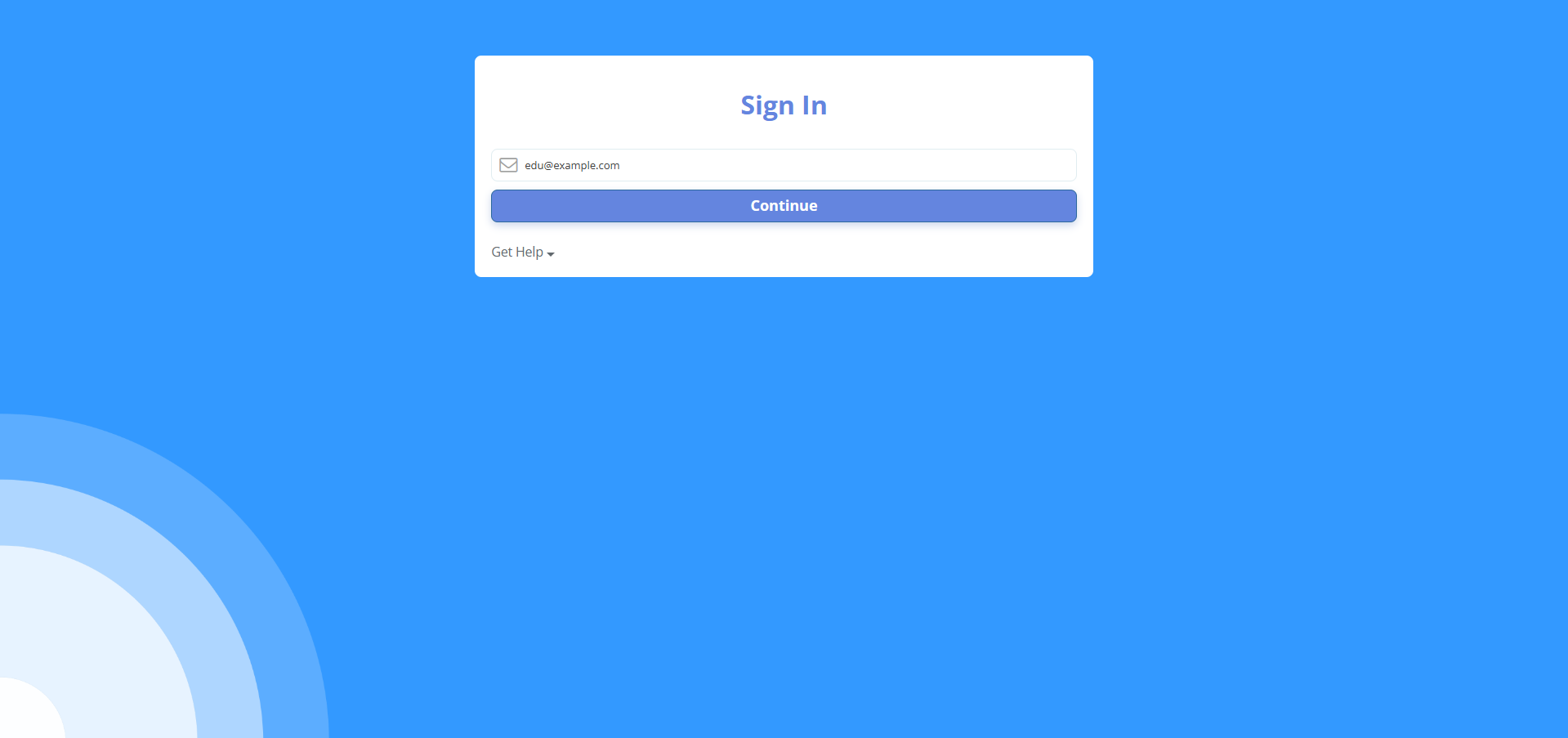
Fig. 2 — Email entered before continuing -
Wait for the verification code screen. Make sure your email address is shown correctly and, if needed, click “Change email” to update it.
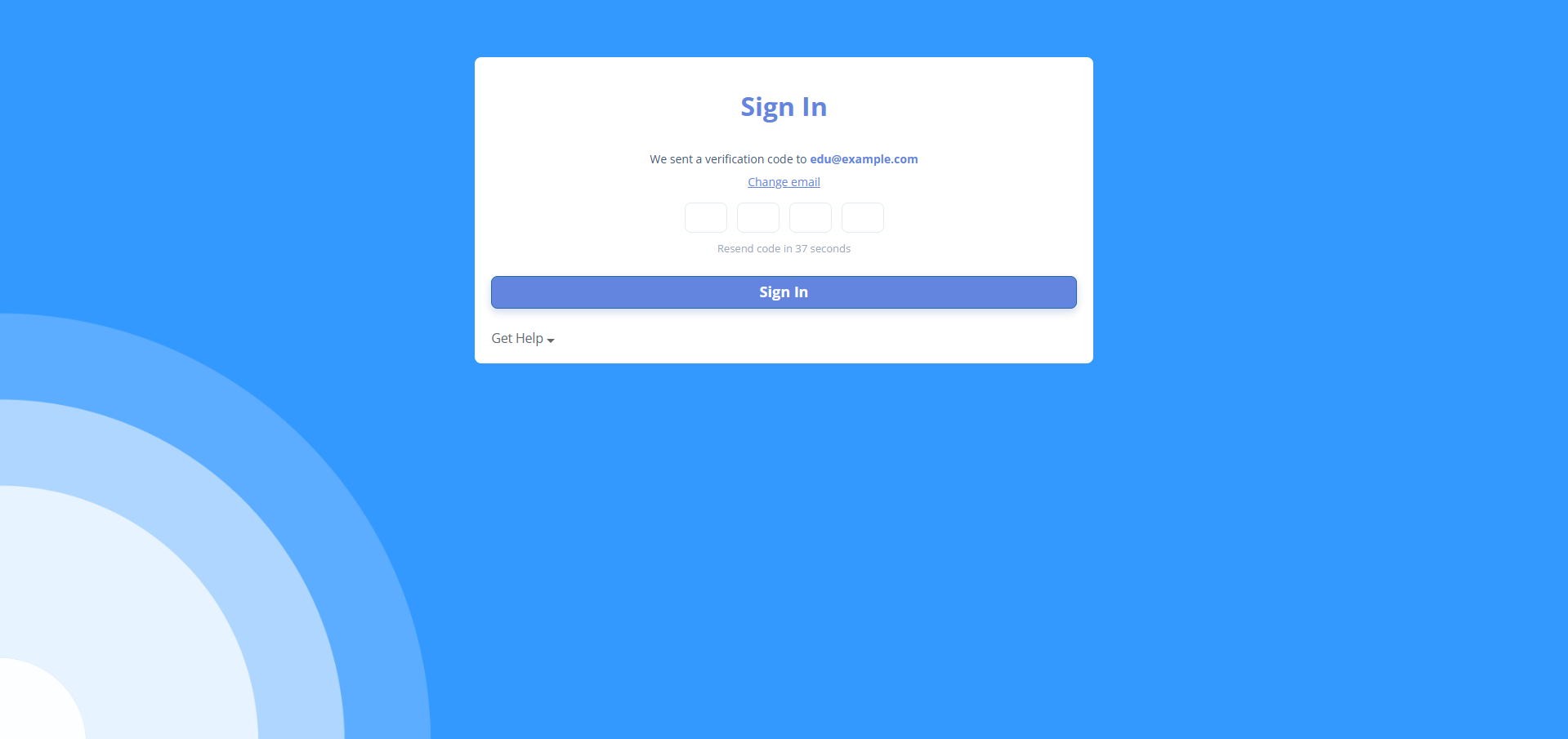
Fig. 3 — Verification code entry form -
Open your email inbox and find the message with the verification code.
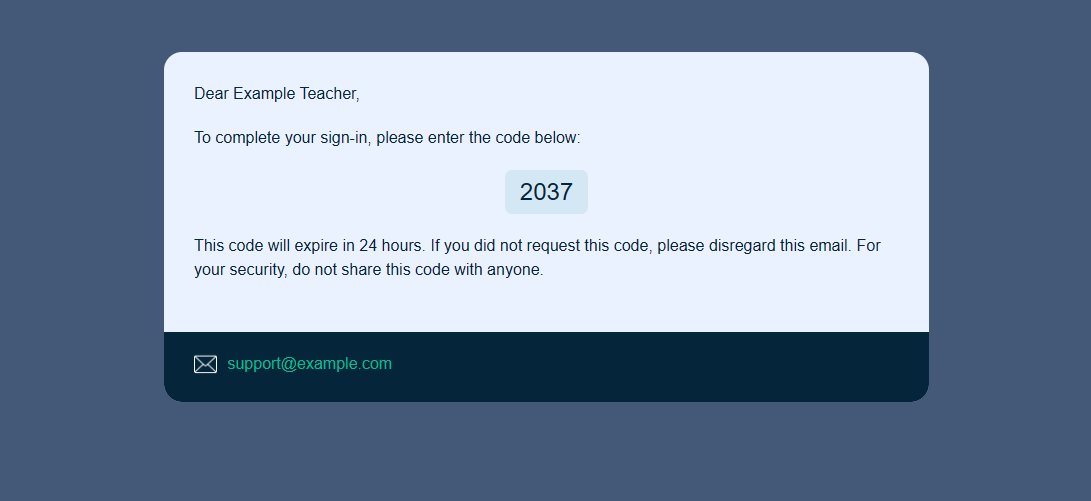
Fig. 4 — Example of verification email with code -
Enter the received code into the fields on the “Sign In” page and click “Sign In”.
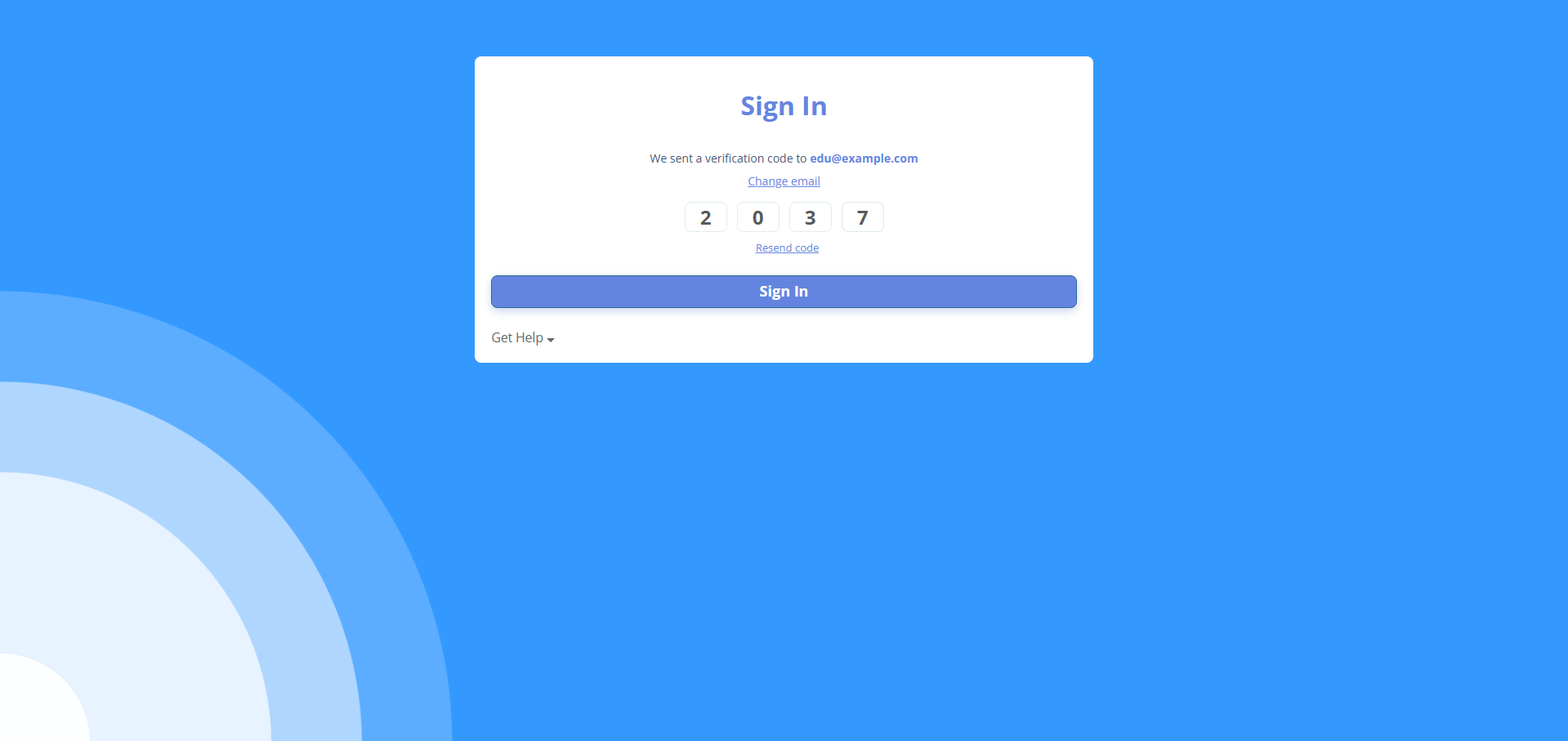
Fig. 5 — Code entered on the “Sign In” page -
If the code is correct and has not expired (the one-time code is valid within 24 hours after sending), you will be signed in to the Platform.
-
If you have trouble signing in, click “Get Help” and choose one of the options (for example, learn more about sign-in or contact support).
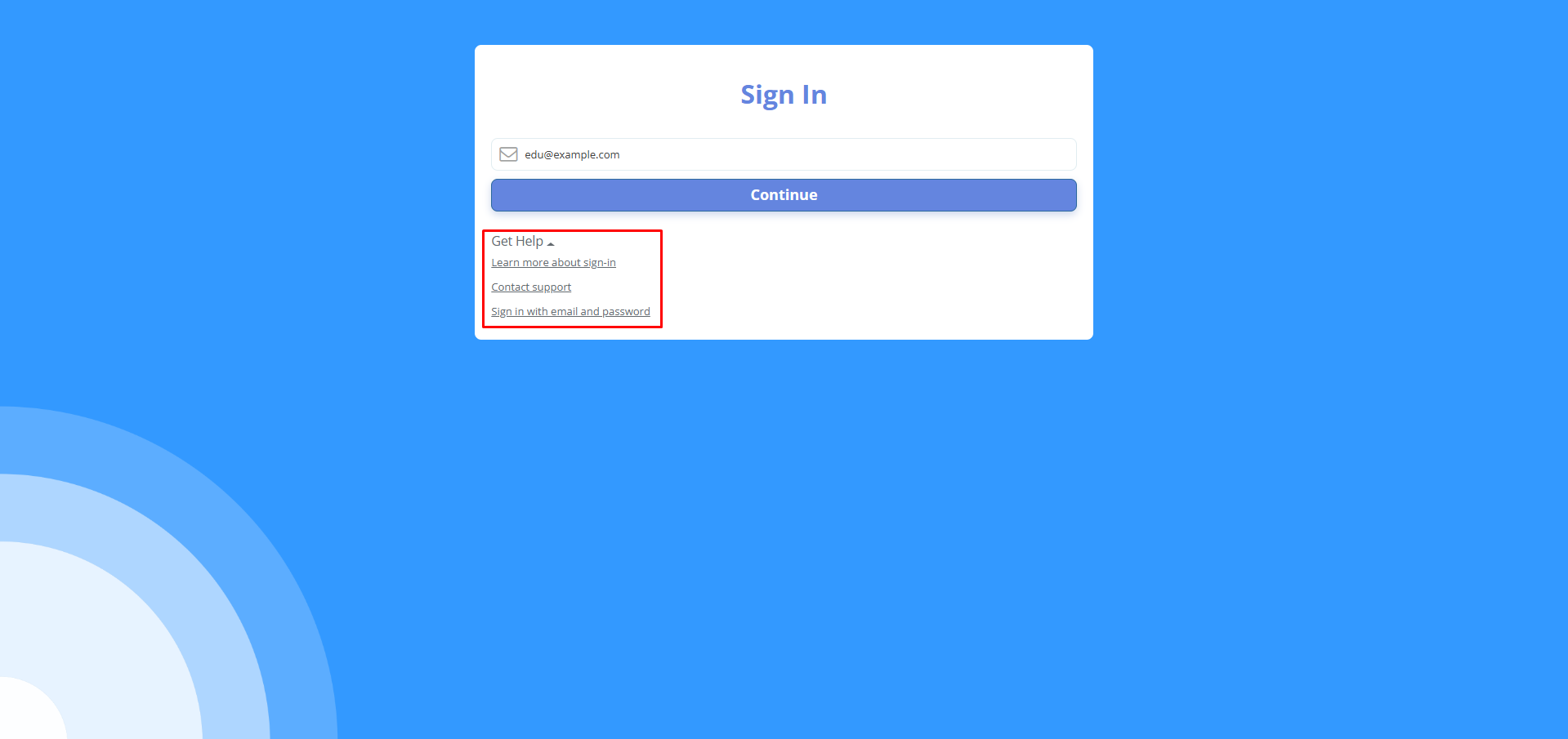
Fig. 6 — “Get Help” options on the “Sign In” page
Option 2: Sign-In via Email and Password
- You can also sign in to the platform using your email address and password. To do this, click "Get Help" and select "Sign in with Email and Password".
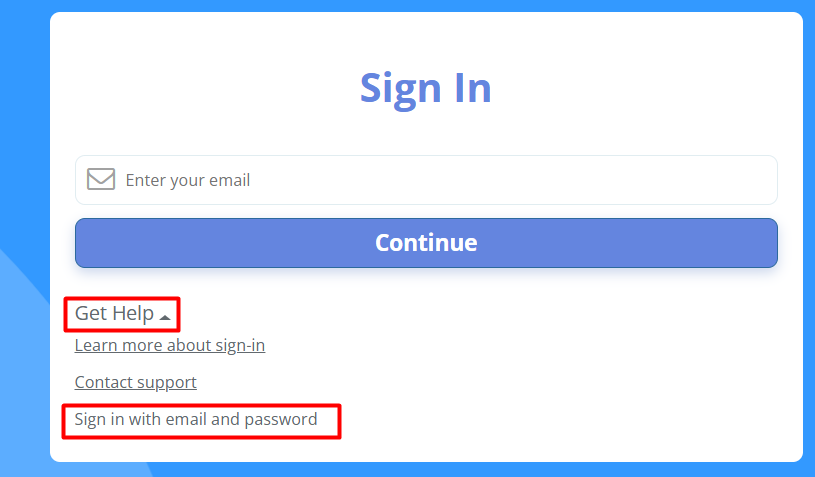
Fig. 7 — Sign-In via Email and Password Option
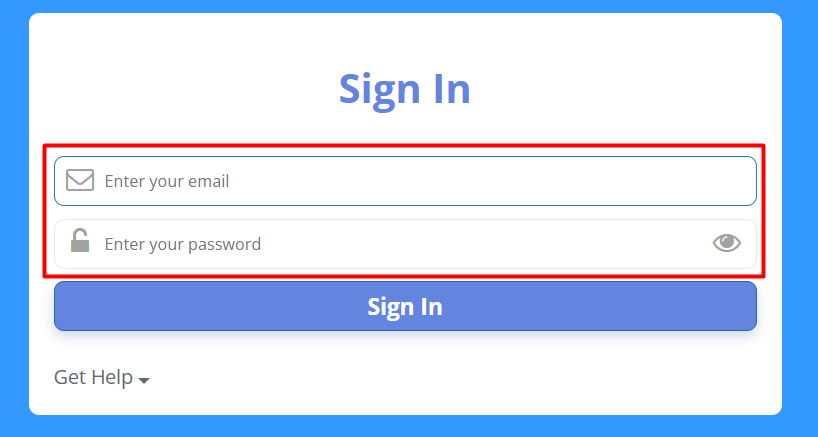
Fig. 8 — Sign-In via Email and Password Form - Enter your email address and password in the corresponding fields and click "Sign in".
Forgot Password
-
If you forgot your password, use the password recovery option by selecting Get Help -> "Forgot password?".
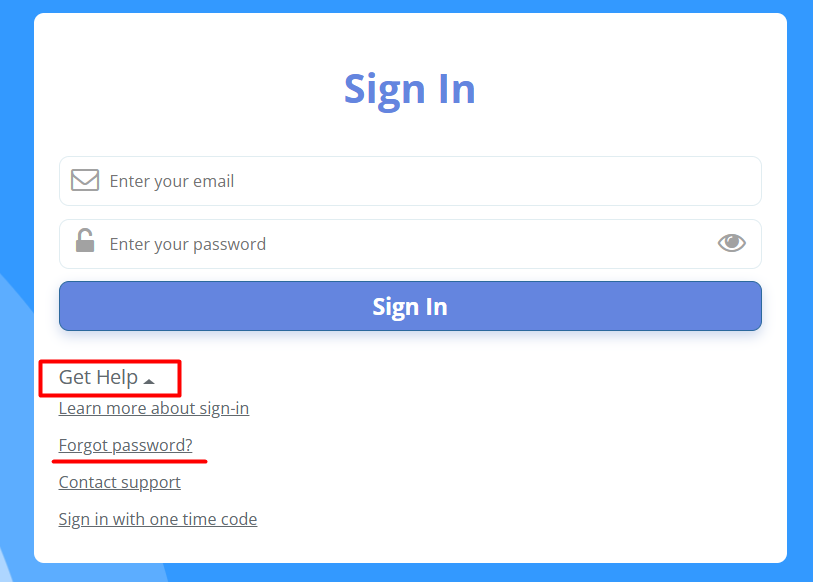
Fig. 9 — Forgot Password Option In the "Forgot password?" form, enter the email address that was used to register your account on the platform and click "Reset password". You will receive an email at the specified address with new login details for your account.
Troubleshooting When Signing In to Personal Account
"Invalid login credentials" or "Invalid Email Address" Message
If the system displays a message indicating that the user cannot be found or that the email address is invalid, please verify that the email address has been entered correctly. Make sure there are no typos, extra spaces, or incorrect characters. Also, ensure that you are using the same email address that was used when registering your account on the platform.
One-Time Login Code or Password Reset Email Is Not Received
If you do not receive a one-time login code or a password reset email, first check your Spam, Promotions, or other automatically sorted email folders. System-generated emails may occasionally be delivered to these folders.
We also recommend checking whether your mailbox is full. You can do this by sending a test email to your address from another email account and verifying that new messages are being received correctly.
After completing these checks, try requesting the one-time login code or password reset email again.
If the issue persists and all of the above possible causes have been ruled out, please contact our support team via online chat and provide details of the issue, including the email address associated with your account.