Program Classes

Program Classes

Program Classes

Adding New Program Classes

  1. Select Programs -> Schools in the panel menu on the left.

  2. Click the context menu button on the right to the required school and select Sessions.

  3. Click the context menu button on the right to the required session and select Programs.

  4. To open the “Program Classes” page , click the 'Manage Classes' option in the context menu of a particular Program.
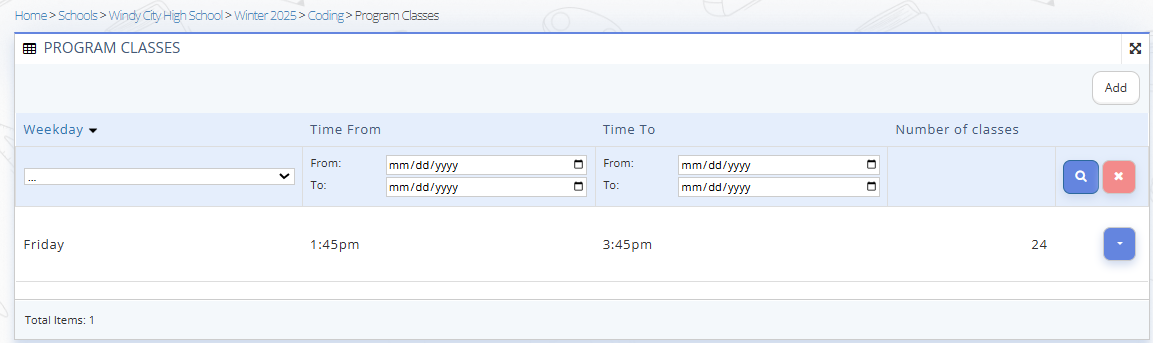
    Fig. 1. Program Classes
    Fig. 1. Program Classes

  5. Program Classes page includes:

    • Program Classes schedule list: The compilation of the Program Classes that have been added under the Program.

    You can use the filter to narrow down the list:
    -- Select a day in the “Weekday” dropdown.
    -- Set “Time From” range using the “From/To” fields.
    -- Set “Time To” range using the “From/To” fields.

    • 'Add' Button: Allows to add a new Program Class.
    • Manage Program Classes: each Program Class in the list can be edited or removed.
  6. To add a New Program Class, click 'Add' button, and then fill in all required fields in the opened 'Add' window:

    • Weekday: Day of the week when the Program activities are scheduled.
    • Number of Classes: Total number of classes that are scheduled for the particular weekday.
    • Time From: time unit when the class starts.
    • Time To: time unit when the class ends.
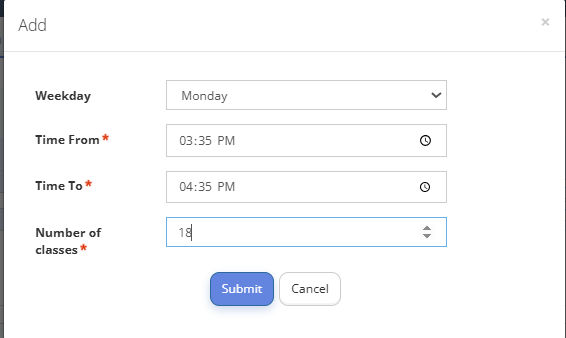
      Fig. 2. Adding the Program Classes
      Fig. 2. Adding the Program Classes
  7. Click “Submit”.

    • Related Articles

    • New Program Sign Up Flow

      New Program Sign Up Flow Sign Up Flow Overview The Sign Up Flow consists of 7 steps for Parents who have never registered their Child for the Programs and do not have a platform account. Parents must complete Step 1 to gain access to the platform. ...
    • Parent Dashboard

      Parent Dashboard Upon successful registration of their Child to the After School Program, the Parent gains access to the Parent Dashboard. Parent Login Follow the "Signing In to the Platform" User Guideline to log into the Parent Account. A parent ...
    • Art School Group Journal

      The "Art Journals" module must be enabled in advance. Make sure that departments, study levels, subjects, sections, control forms, and user types for the art school have already been configured on the platform. Brief Overview¶ The "Group Journal" ...
    • Modules Settings

      Different user types will have access to different module functionalities depending on the configured access permissions. Modules Settings define which menu blocks and overall functionality is going to be available within a Workspace Template. Each ...
    • Individual Journal in an Art School

      Individual Journal in an art school is a journal for recording individual classes with a specific student, where the educational process is documented according to an individual form of study. To open the list of individual journals of the art ...