Report Card
Generating and Downloading a Report Card
A report card is a PDF document that summarizes a student’s grades for a selected academic year or term.
⚠️ Report cards are automatically generated from the current grades in the system. If grades change later, you need to create a new report card again.
Steps
- Open the platform and log in to your account.
- Go to the “Report Card” section in the panel menu on the left.
- Click the “Create” button in the top-right corner of the page.
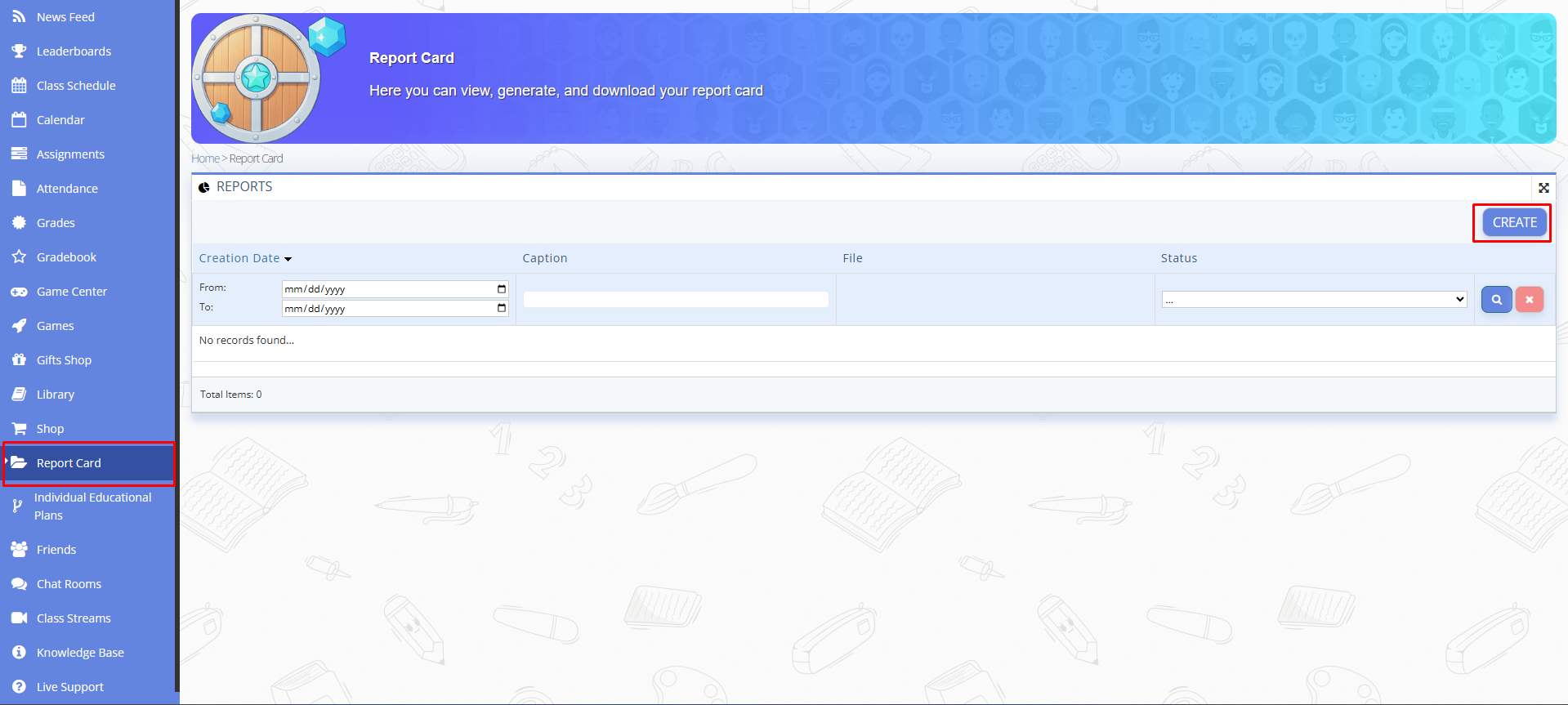
Fig. 1 — “Report Card” section with the list of reports and the “Create” button - In the “Create” window, select the Section and academic Session from the dropdown lists, then click “Submit”.
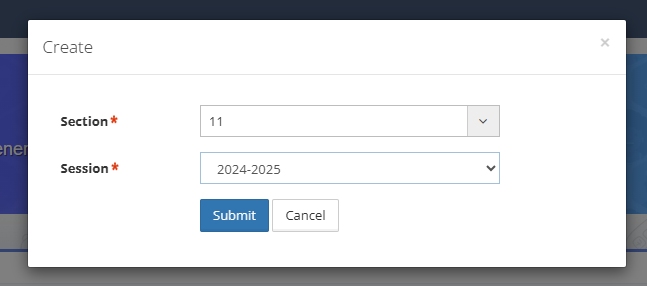
Fig. 2 — Selecting Section and Session for the report card - In the “REPORTS” list, make sure the new record appears with the “Pending” status and wait until the file is generated.

Fig. 3 — Report card file with “Pending” status - When the status changes to “Success”, click the arrow under the file icon to download the report card as a PDF file.
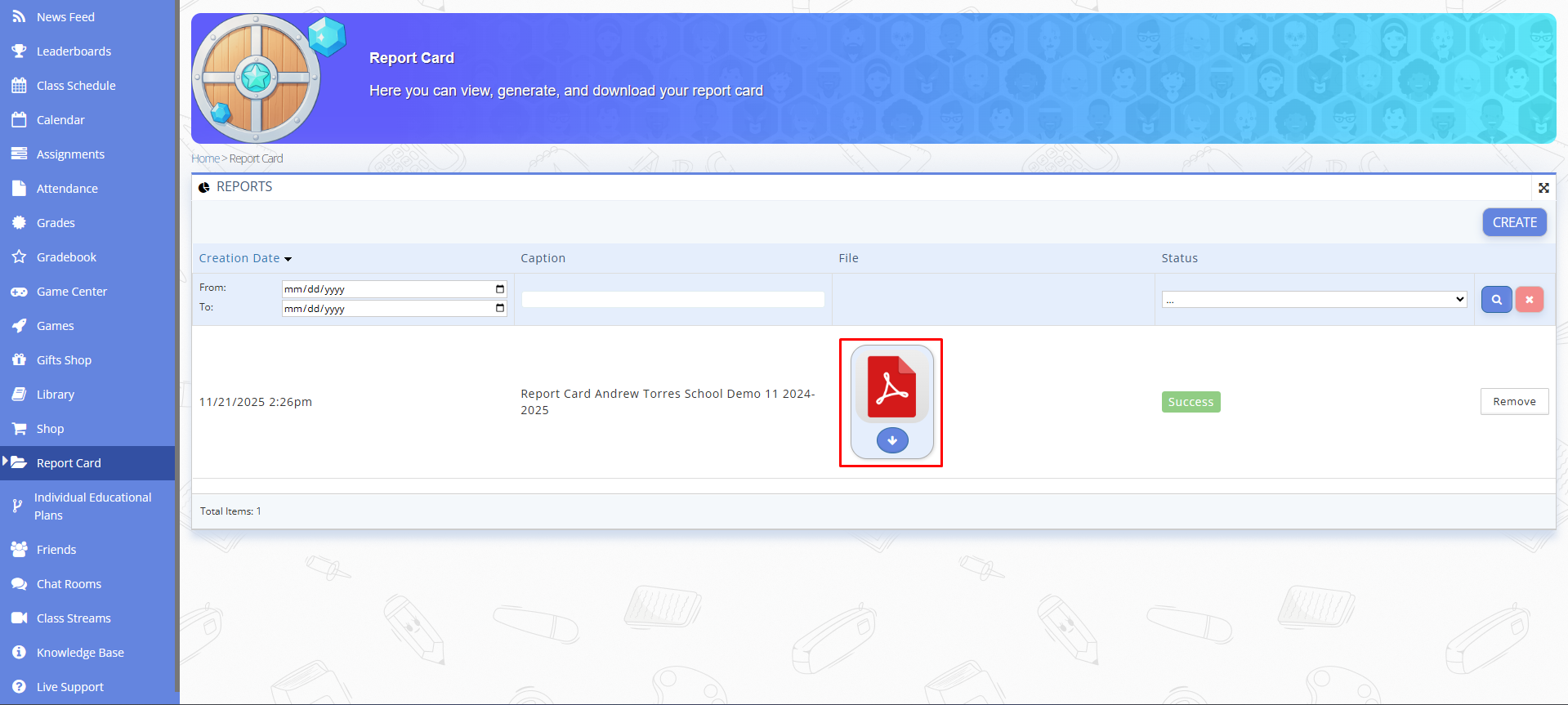
Fig. 4 — Downloading the generated report card file - To view the report card without downloading it, click directly on the file icon.
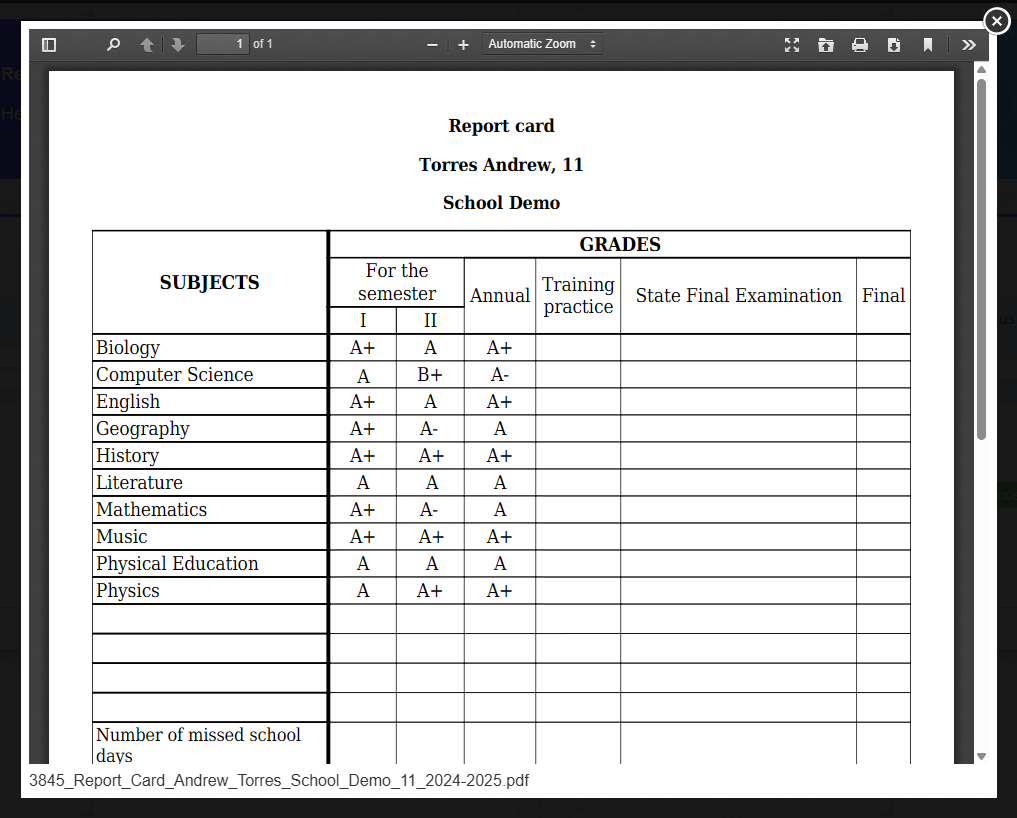
Fig. 5 — Report card opened in the browser