Report Card
Report Card
Generating and Downloading a Report Card
A report card is a PDF document that summarizes a student’s grades for a selected academic year or term.
⚠️ Report cards are generated from the current grades in the system. If grades change later, you need to create a new report card again.
Steps
- Open the platform and log in to your account.
- Go to the “Report Card” section in the left-hand menu.
- Click the “Create” button in the top-right corner of the page.
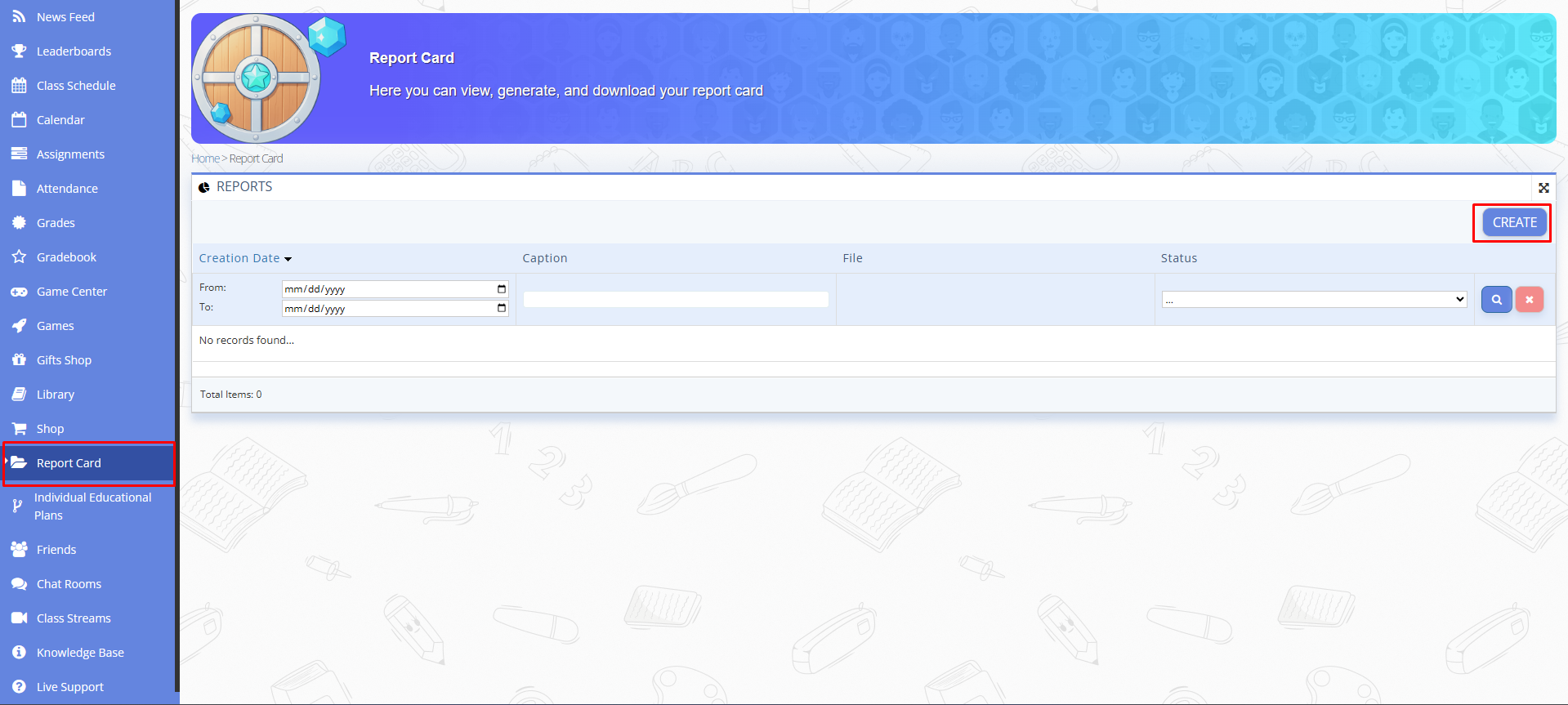
Fig. 1 — “Report Card” section with the list of reports and the “Create” button - In the “Create” window, select the Section and academic Session from the dropdown lists, then click “Submit”.
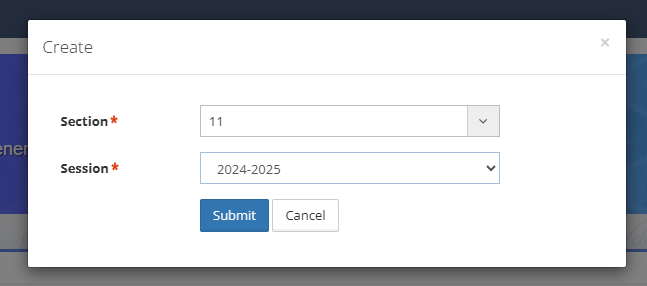
Fig. 2 — Selecting Section and Session for the report card - In the “REPORTS” list, make sure the new record appears with the “Pending” status and wait until the file is generated.
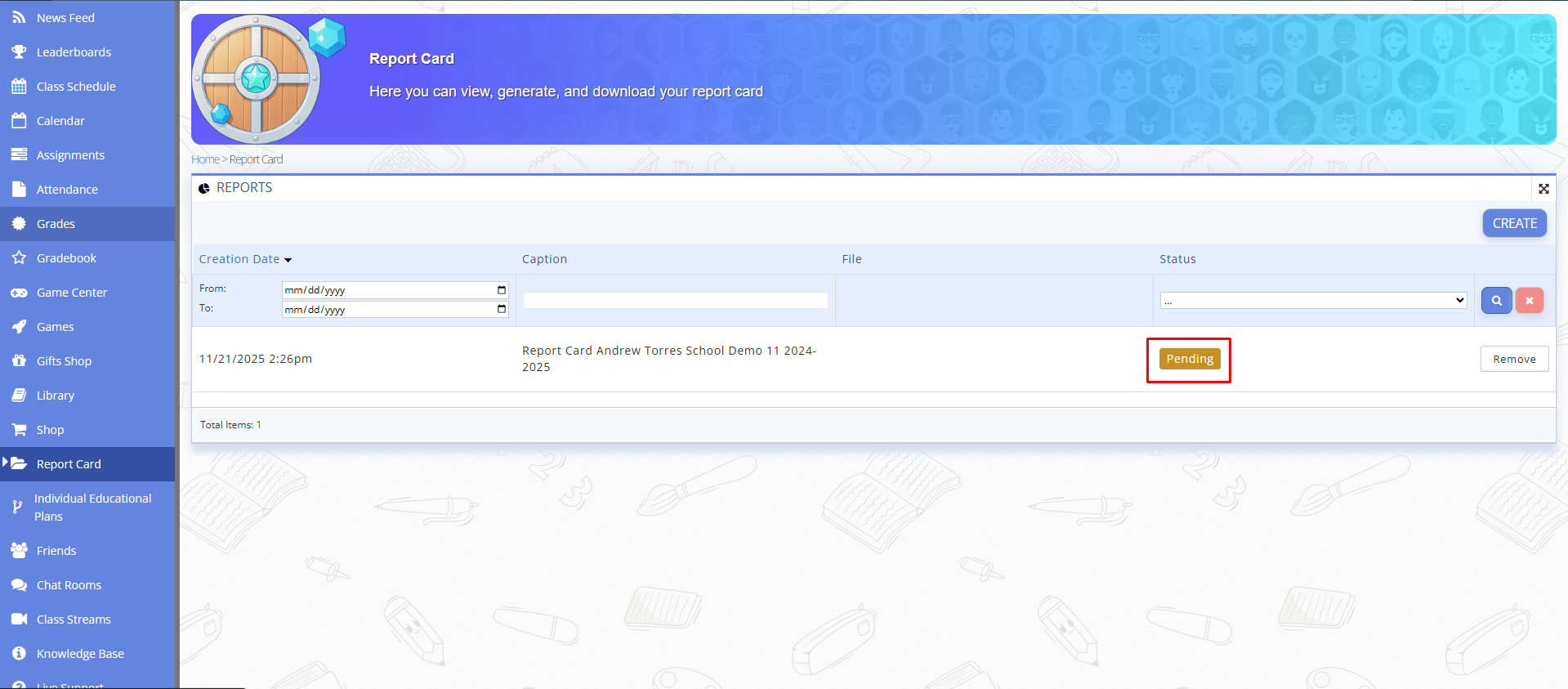
Fig. 3 — Report card file with “Pending” status - When the status changes to “Success”, click the blue arrow under the file icon to download the report card as a PDF file.
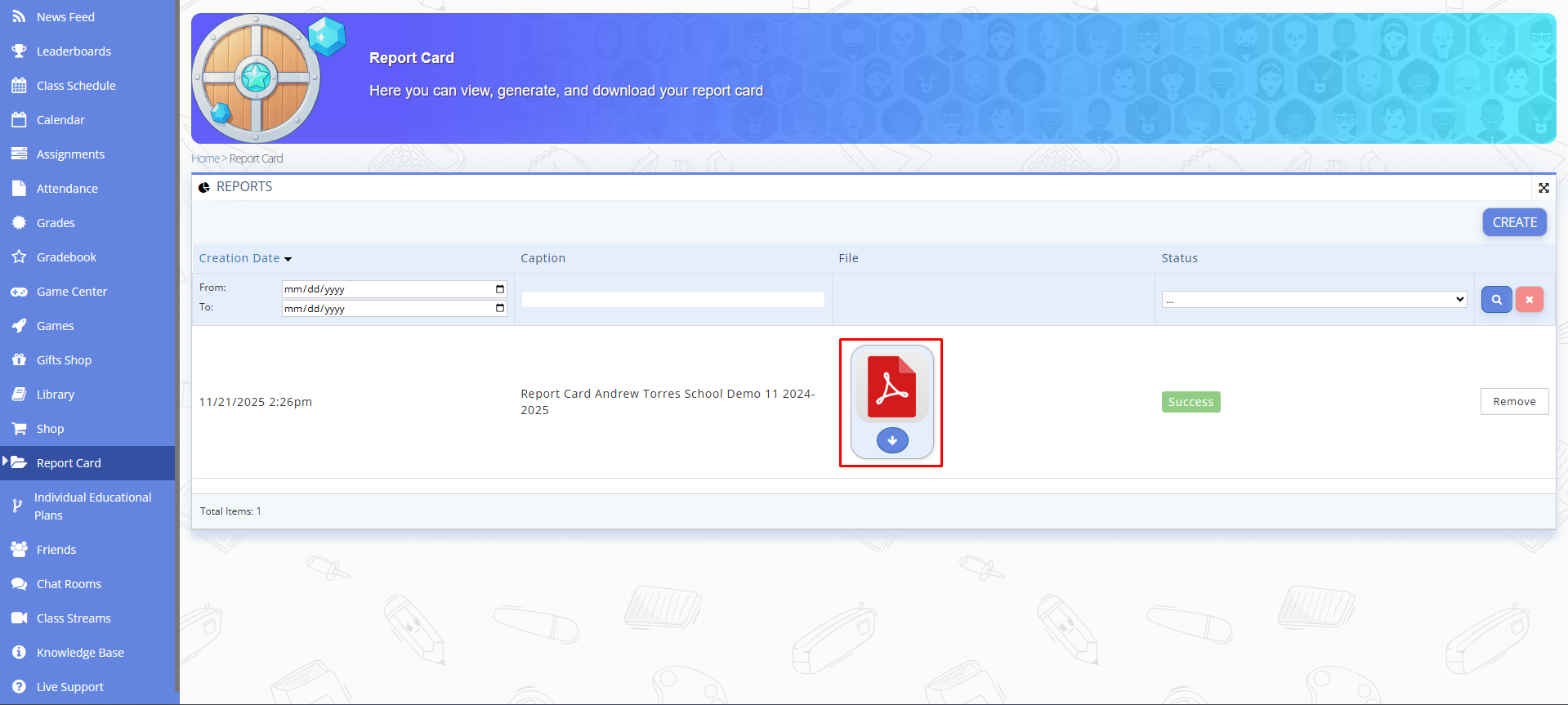
Fig. 4 — Downloading the generated report card file - To view the report card without downloading it, click directly on the file icon.
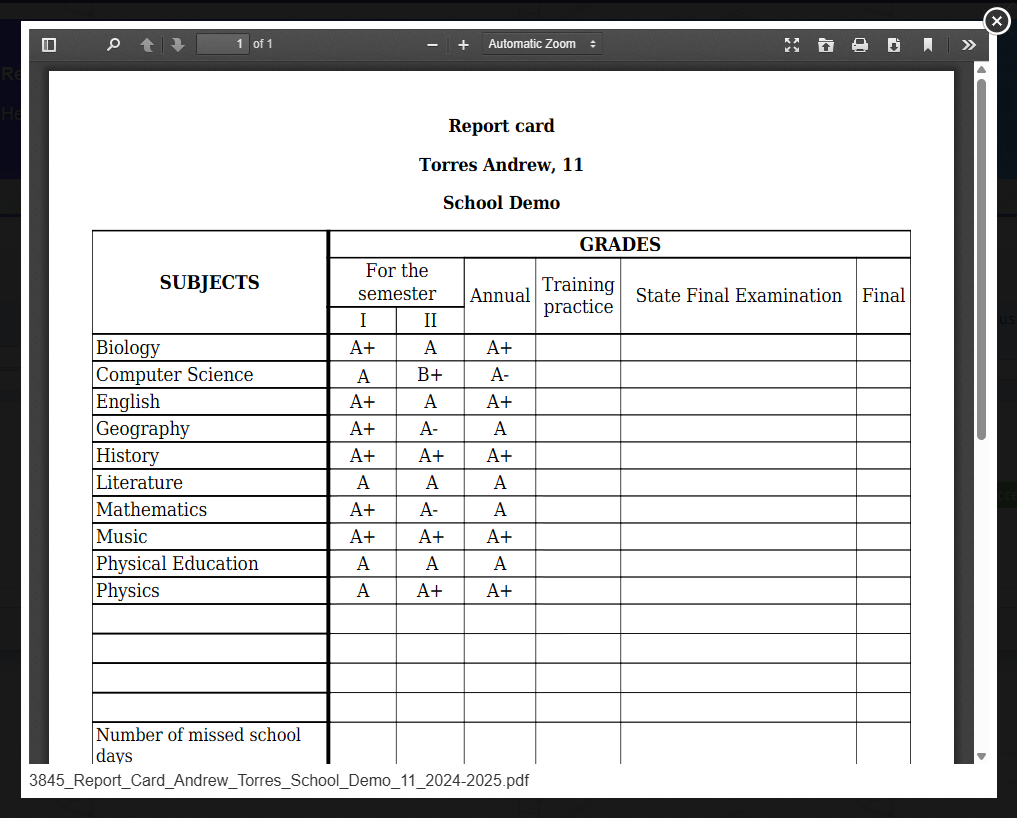
Fig. 5 — Report card opened in the browser
Related Articles
Grades
Grades Gradebook¶ Steps¶ Open the platform and log in to your account. Select the "Gradebook" menu item. Use the filter and set the filtering parameters. You can choose: Date — the period for which you want to view grades. Subject — specific subject. ...Gradebook
Gradebook¶ ⚠️ Information about assignments, grades, and attendance automatically appears on the Gradebook page after the teacher adds it on their electronic Journal page. Steps¶ Go to the "Gradebook" page. Here you will find a column with the ...Initial Setup of Educational Institution
Instruction for Educational Institution Administration (for Principal, Vice Principal, Administrator) 1. Open the platform You can open the platform by following the link: https://dashboard.lummio.com/login/. Then sign in using your username and ...Other school settings
Other school settings Performed by the School Administration (Principal, Vice-principal, Administrator): The educational institution administration has the ability to perform certain additional settings. To do this, the user must go to the "Settings" ...