Transfer Student to Another Section

Transfer Student to Another Section

Transfer Student to Another Section

Transferring a Student to Another Section

⚠️ Administrator, Principal, or Assistant Principal role access is required

Steps

  1. Log in to the platform using the link.

  2. Go to “Settings” → “Sections”.

  3. Select the Section to which you need to transfer the student.

  4. Click Actions next to the Section name and select “Students”.
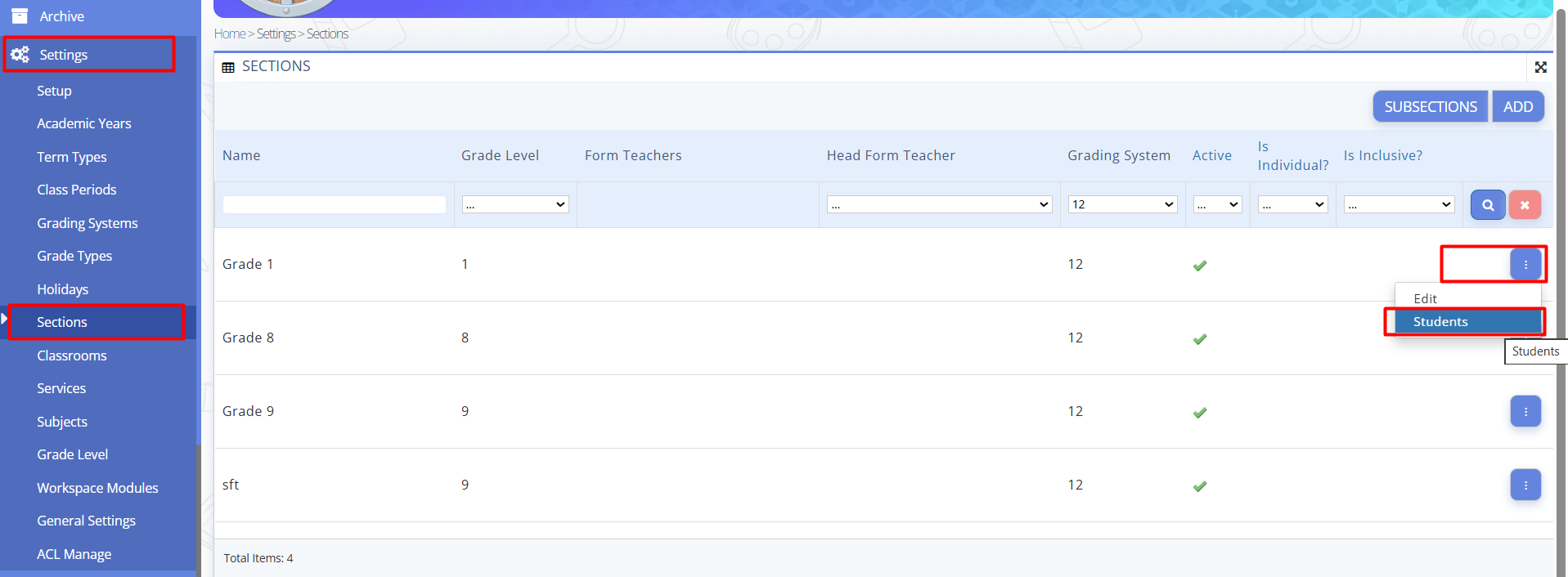
    Sections list
    Fig. 1 — Sections list

  5. Click the “Add” button in the upper-right corner.
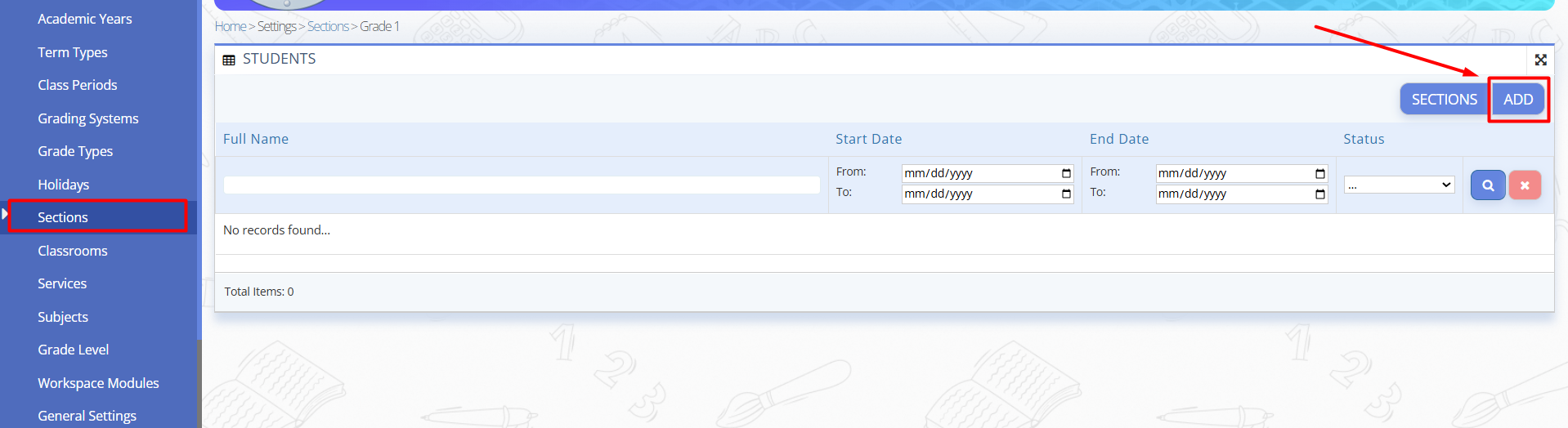
    Button for adding a student to a class
    Fig. 2 — Button for adding a student to a class

  6. In the pop-up, enter the student’s last name, select them from the list, choose “Start Date” and click “Save”.
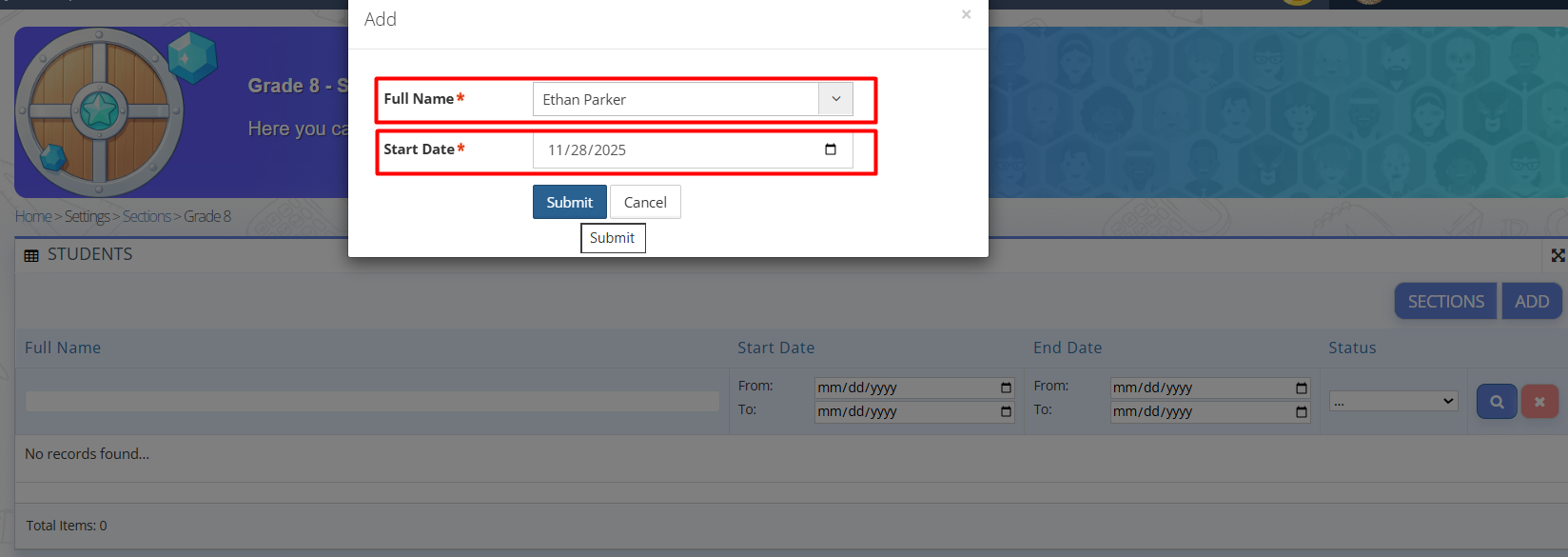
    Fig. 3 — “Add student” pop-up

  7. Return to “Settings” → “Sections”.

  8. Select the Section from which you need to withdraw the student.

  9. Click Actions next to the Section name and select “Students”.
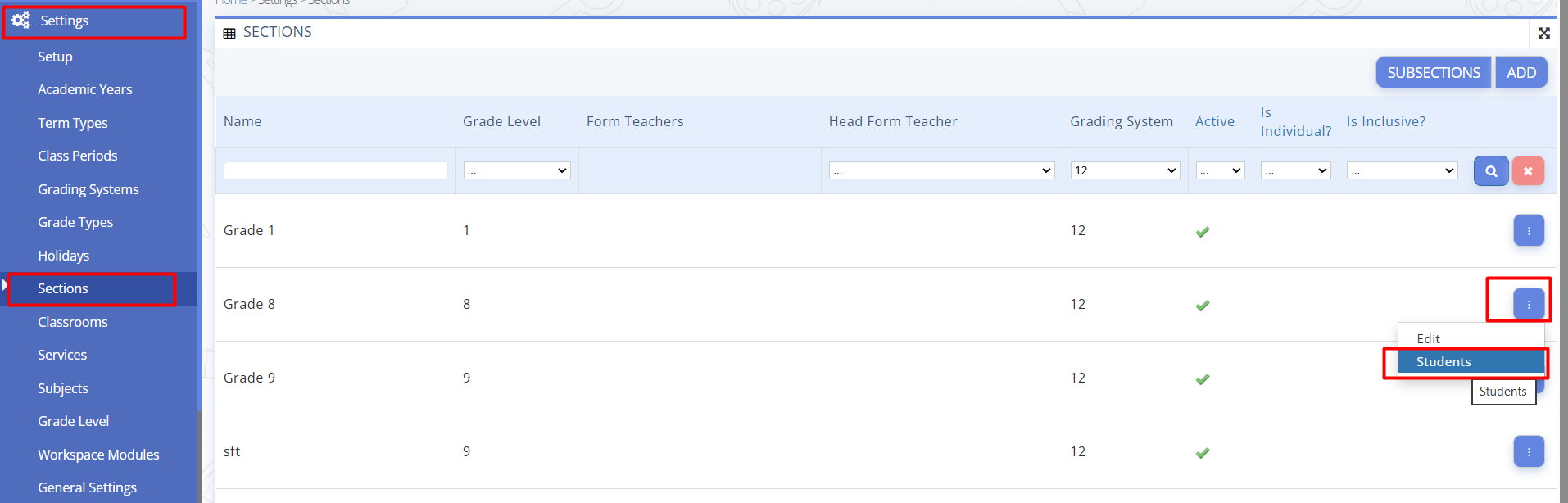
    Searching for a student to withdraw
    Fig. 4 — Searching for a student to withdraw

  10. Find the student in the list.

  11. Click Actions next to their name and select “Expulsion”.
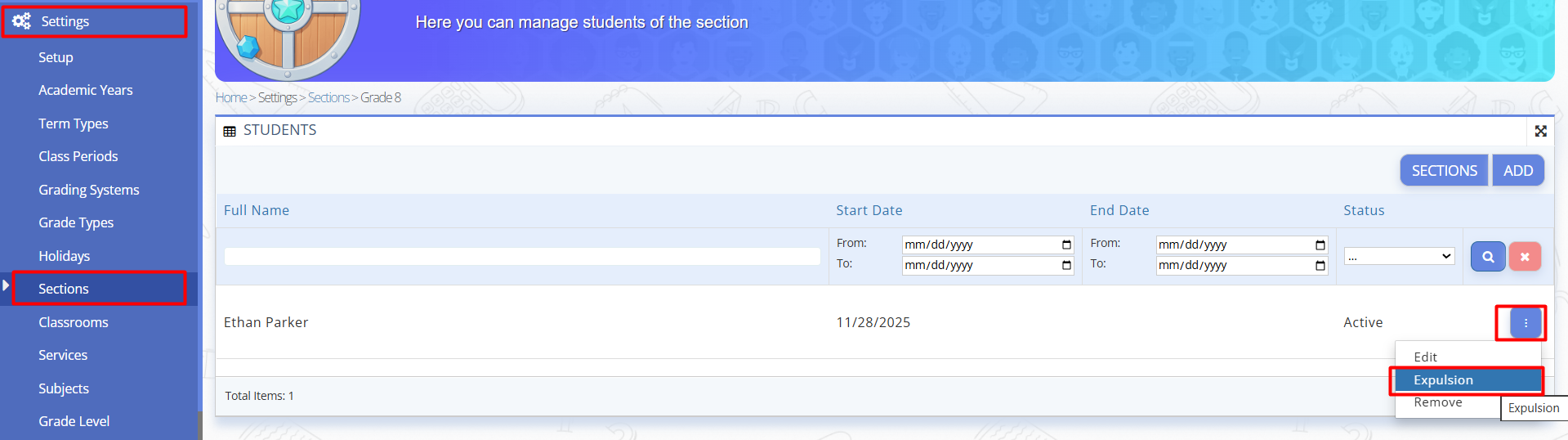
    List of students and the withdraw button
    Fig. 5 — List of students and the withdraw button

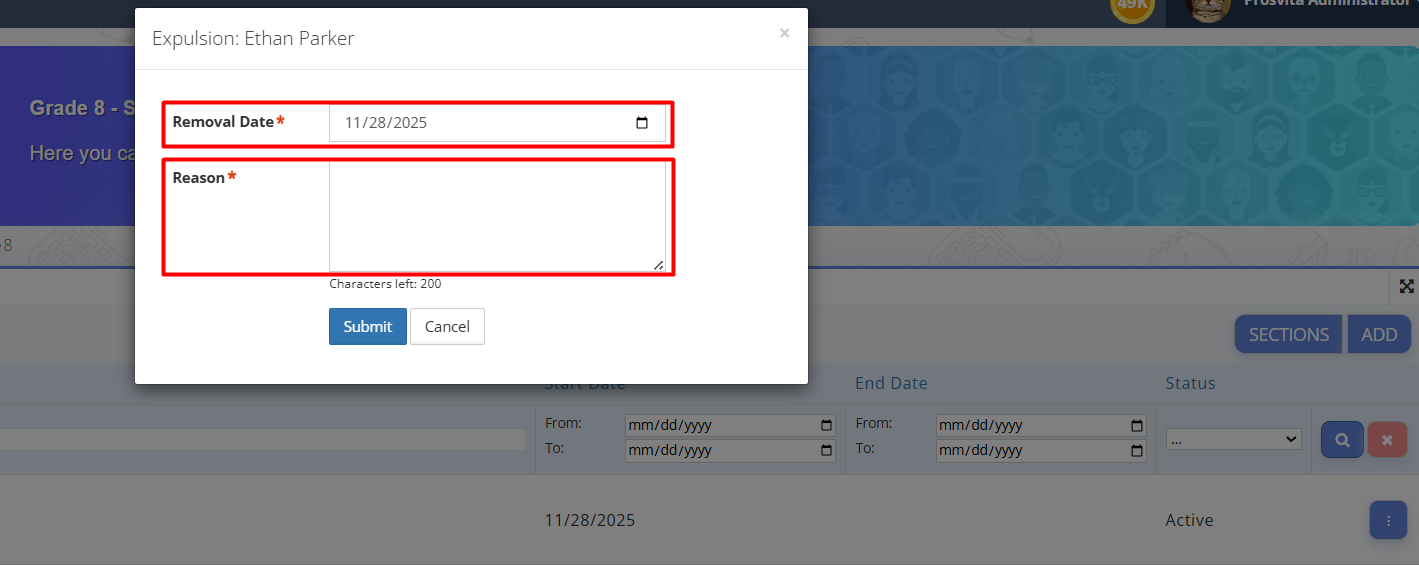
  12. In the pop-up window, specify the date and reason for the withdrawal.

  13. Click “Save”.
    Student withdrawal pop-up
    Fig. 6 — Student withdrawal pop-up

  14. Make sure the student has been withdrawn from the previous Section. All their grades in the Gradebook are preserved.

    • Related Articles

    • Quiz Taking

      How to take a quiz (instruction for the student)¶ To take a quiz, you need to go to the "Assignment" section, find the corresponding assignment, and click the "View" button. Steps¶ Go to the "Assignments" section. Find the required assignment and ...
    • Assignments

      Assignments Finding and Submitting Assignments as a Student Steps Open the platform and sign in to your account. In the menu on the left, select "Assignments". Review the list of assignments. Here you will see all assignments both home assignments ...
    • Event Types

      The Event Types section lets an administrator manage the list of system events that can be used in gamification features (e.g., reward rules, points/experience tracking). Each event type defines a readable caption, a technical event identifier, and a ...
    • Access Control List by the Educational Institution Administration

      Access Control List by the Educational Institution Administration¶ ⚠️ The section is available to the Administrator and Principal of the educational institution. The “Access Control List” Manage (ACL) section allows the administrator to configure ...
    • Adding New Grading System

      Adding New Grading System¶ ⚠️ This section is available for configuration by the Educational Institution Administrator. The platform implements a flexible grading mechanism that allows to adapt the system to the needs of a specific section, subject, ...